MYLAPS Cloud Timing
RunScore's integration with MYLAPS Cloud Timing lets you receive live chip reads directly from the cloud — giving you powerful tools to manage, monitor, and analyze race events with greater accuracy and efficiency.
Getting started: enabling MYLAPS Cloud
Before you can use MYLAPS Cloud Timing in RunScore, enable the connection. This is a simple, one-time setup:
- Open RunScore and open your race file. (Opening a race file activates many of RunScore's features, turning grayed-out menu options into clickable tools.)
- Go to the Menu Bar at the top of the RunScore window.
- Click Tools, hover over Cloud System, and select MyLaps.
- Look for a check mark next to MyLaps. If you don't see one, click MyLaps to enable Cloud Timing.
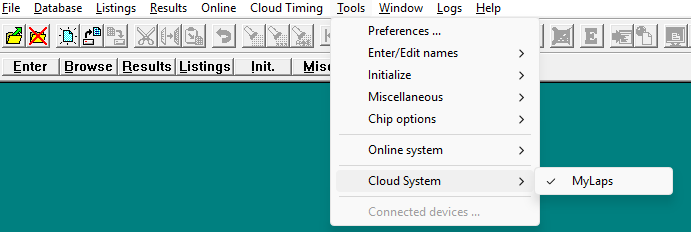
Once enabled, you're ready to link RunScore to your personal MYLAPS account.
The MYLAPS menu
Similar to Online, each cloud system has its own menu. After you enable MYLAPS Cloud Timing and connect your account, use the Cloud Timing menu for event selection, live data, markers, and timeline playback.
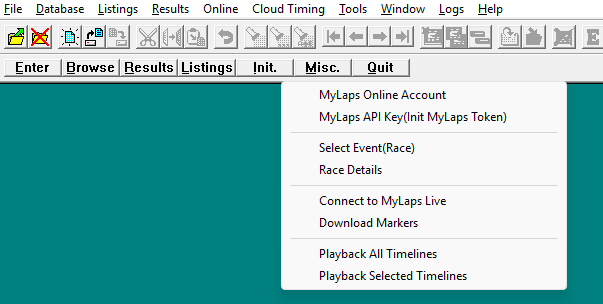
In this section
| Page | Description |
|---|---|
| API Key and Account | Link RunScore to your MYLAPS account with an API key |
| Select Event and Race Details | Choose a cloud event and review its details |
| Connect to Live Data | Receive real-time passings during your event |
| Download Markers | Retrieve marker data from MYLAPS Cloud |
| Playback Timelines | Review historical passing data after the event |