Participant Downloads
Download participant registrations from Race Roster into RunScore using the Race Roster API Participants endpoints.
When downloaded participants include teamId values, RunScore automatically retrieves team data from the API and includes it with each participant record. See Participant Fields for the full field reference.
Before you start
- Start the RunScore application.
- Open the race you want to download participants into.
- Make sure your race database has fields for the participant data you need from Race Roster.
Enable Race Roster
- Select Race Roster as your online system: Tools → Online system → RaceRoster.
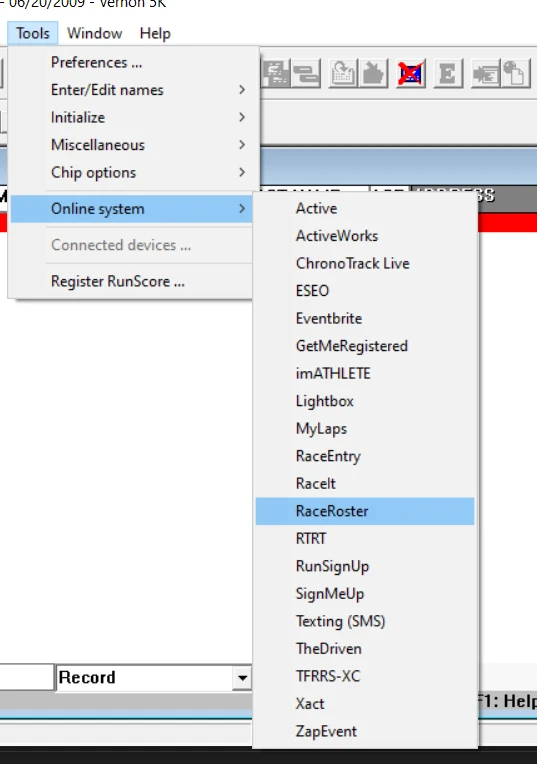
Log in and select a race
- Open the Online menu and choose Login.
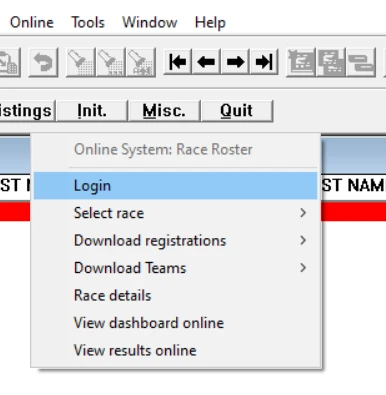
- Select the race to download from: Online → Select race → Future races or All races.
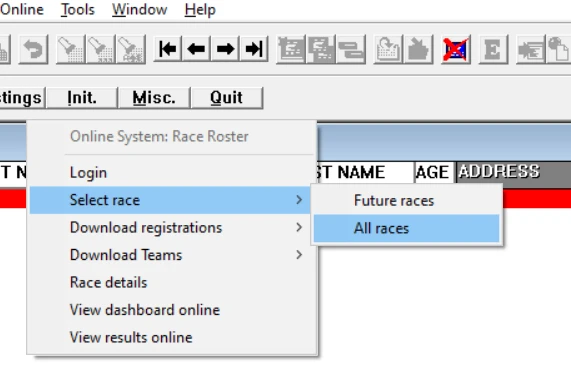
For events with multiple sub-events (5K, 10K, Half Marathon), RunScore prompts you to choose which sub-events to download. RunScore retains your sub-event selections for subsequent downloads.
Download participants
-
Choose Online → Download registrations → Download all subevents (or Download selected subevents).
-
Map fields as prompted. Mapping is automatic when API field names match your RunScore column names. See Participant Fields for field descriptions.
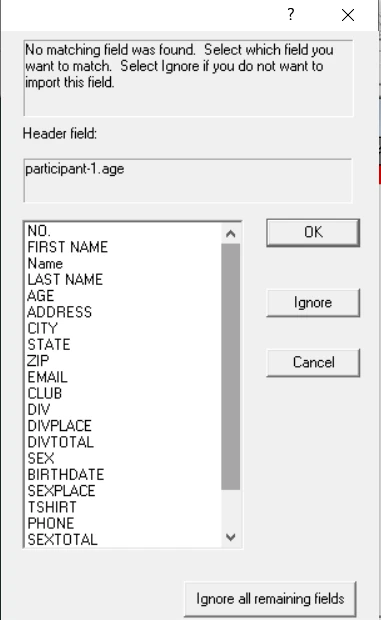
When mapping, Ignore all remaining fields skips all unmapped fields for the current participant and moves to the next one.
- Complete the download.
Use Online → Download registrations → Edit Field Mapping to adjust field mappings after your first download.
Incremental download
After your initial download, choose Online → Download registrations → Download all subevents (or Download selected subevents) and click Incremental download to fetch new registrations and changes since the last download.
Use incremental downloads during the registration period and on race day to keep RunScore in sync with Race Roster without re-downloading the entire roster. Run a last one on race morning, before you open the Results Screen: any Race Roster download closes open Results windows. See Race-day checklist.
Related
- Participant Fields — API field reference and mapping notes
- Team Downloads — download team records separately
- How to Allocate Space — RunScore can allocate participant database space automatically during online downloads