Team Downloads
Download team records from Race Roster into RunScore using the Race Roster API Teams endpoints.
Before you start
- Start the RunScore application.
- Open the race you want to download teams into.
- Make sure your race has fields for all team members and the information you need for each member.
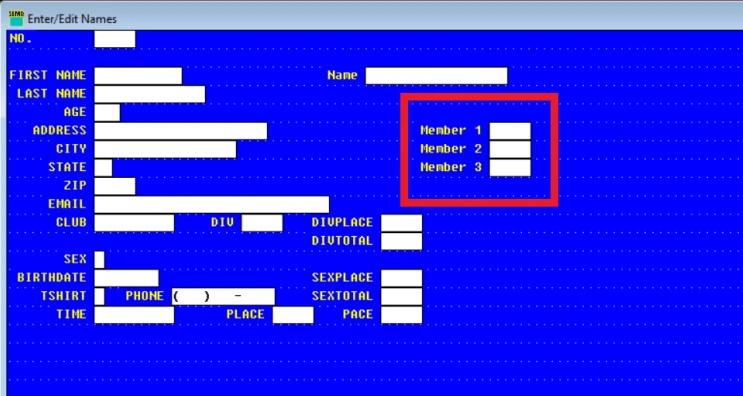
Enable Race Roster
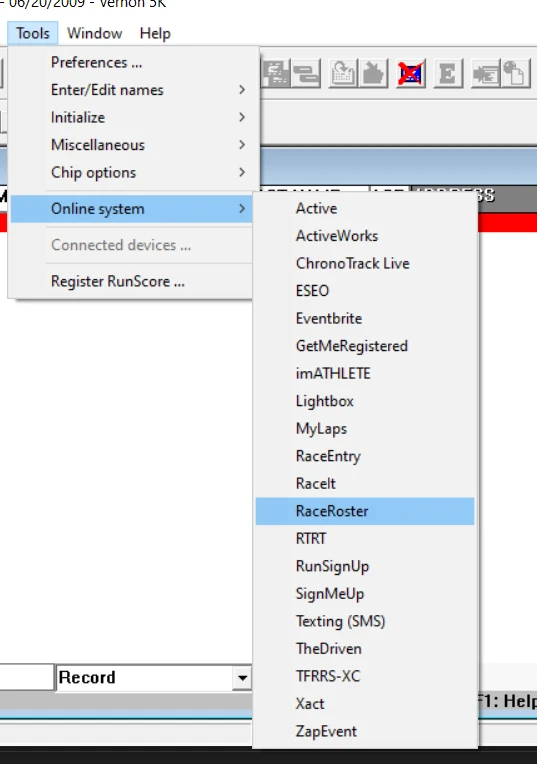
- Select Race Roster as your online system: Tools → Online system → RaceRoster.
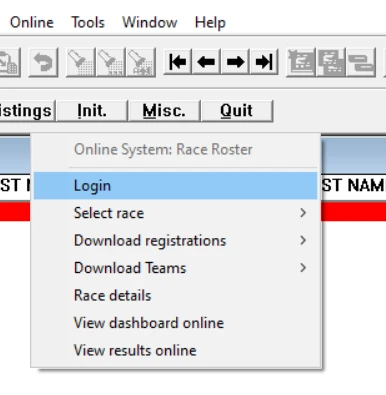
Log in and select a race
- Open the Online menu and choose Login.
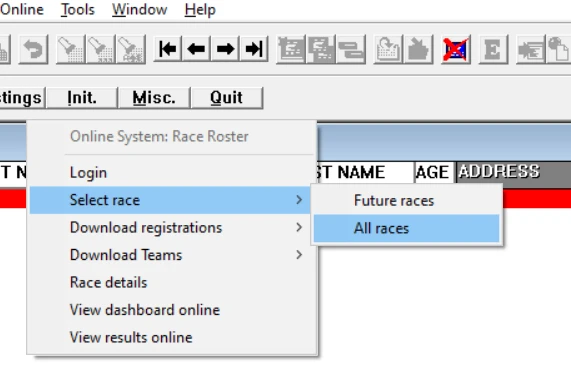
- Select the race to download teams from: Online → Select race → Future races or All races.
Download teams
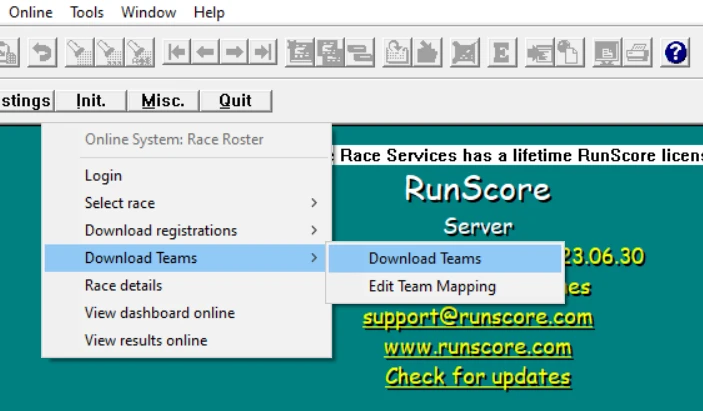
- Choose Online → Download Teams → Download Teams.
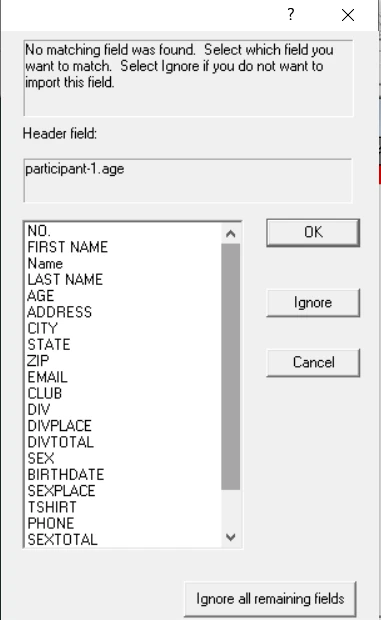
- Map fields as prompted. When downloading participants, Ignore all remaining fields skips all mapping for that participant and moves to the next one.
- Complete the download.
Edit team mapping later
Use Online → Download Teams → Edit Team Mapping to adjust field mappings after your first download.