Entering and Managing Participant Data
With your race configured, it's time to get your participants into the system. This page walks you through the Enter/Edit Names screen — RunScore's primary interface for adding and managing individual participant records — along with tips for working efficiently whether you're entering a handful of registrants or hundreds.
Accessing the Enter/Edit Names screen
There are two ways to open this screen:
- Click the Enter button on the Master Menu (the quickest method)
- Or go to Database → Enter/Edit Names from the menu bar
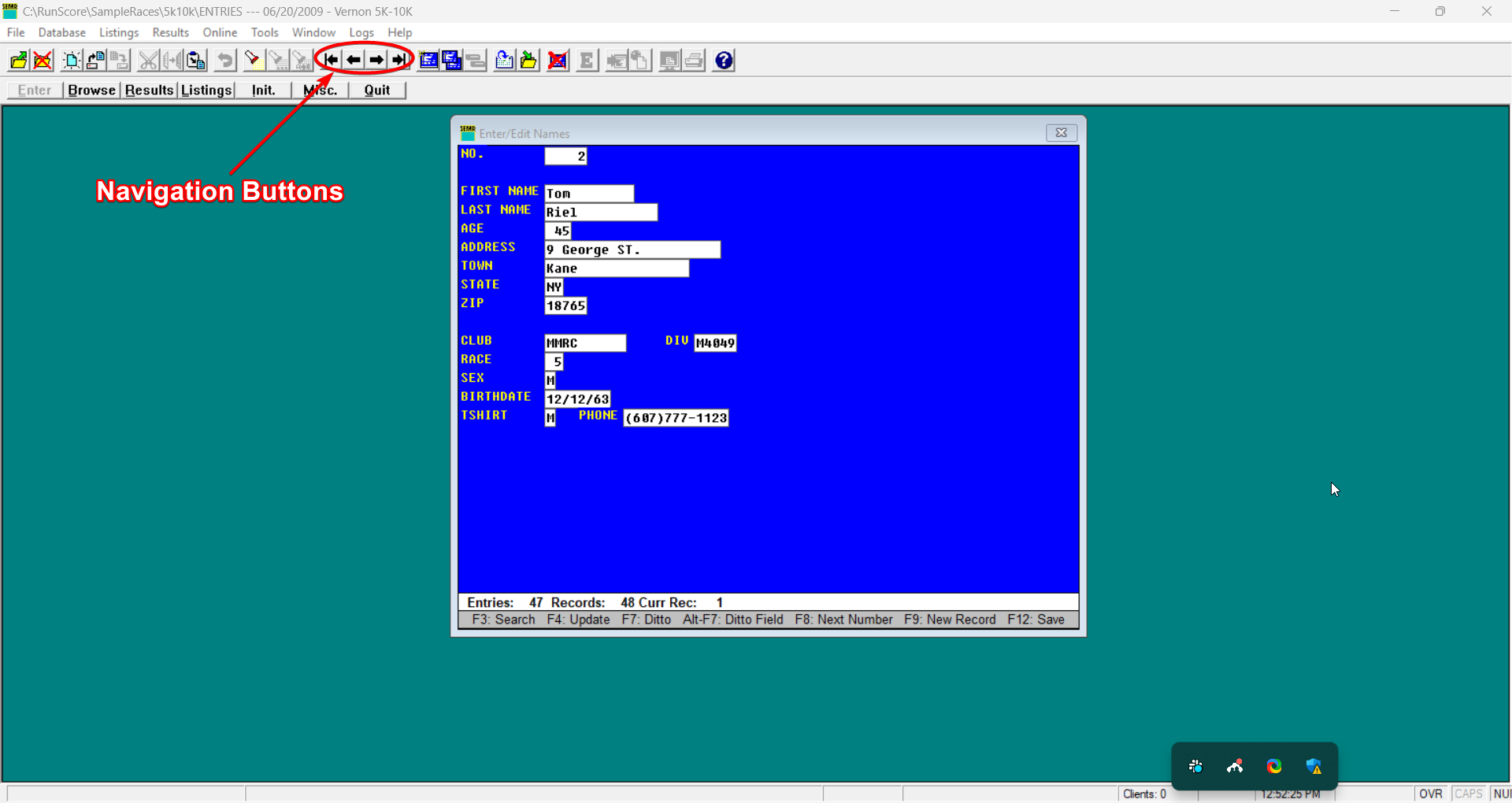
When the screen opens with a blank form, RunScore is ready for you to enter a brand-new record. At the bottom of the screen, you'll see a count of the total number of entries and records currently in your database.
Adding new participant records
Simply start typing each participant's information into the fields on the screen, working from your entry forms or registration list.
A few important things to keep in mind:
If there's already a record loaded on the screen and you start typing, you'll overwrite that participant's data. Before entering a new record, make sure you have a blank form — either by pressing F9 to force a new blank record, or by navigating past the last existing record with PageDown.
F9— Clears the screen and gives you a fresh, blank record ready for new data- The bib number field can be left blank during initial entry and assigned later, or RunScore can auto-assign the next available number when you save
Saving records and moving efficiently
After filling in a participant's details, you have several save options depending on what you want to do next:
| Key | Action |
|---|---|
F4 | Save the current record and stay on that record for review or further editing |
F10 | Save the current record and open a new blank record (with the next bib number auto-assigned) |
F12 | Save the current record and open a new blank record — same as F10, useful when F10 is less accessible on your keyboard |
Esc | Exit without saving — if you've started filling in a new record but change your mind |
When you're entering a long list of participants one after another, F10 creates a rapid-fire workflow: fill in details → press F10 → new blank record → repeat. Many timers can process dozens of entries per minute this way.
Finding and searching existing records
Once your database has entries in it, you'll often need to locate a specific participant — to correct a name, update a bib number, or check their division.
F3— Opens a quick-search dialog; type part of a name or bib number to jump directly to that recordPageUp/PageDown— Step through records one by oneCtrl + Home— Jump to the very first recordCtrl + End— Jump to the very last record
The Ditto shortcut: F7 for repeated data
When several participants in a row share the same information — like a team or club name, a city, or a state — use the Ditto feature to copy that data from the previous record automatically.
F7— Fills the current field with the same value that was in that field in the previous record
This is a real time-saver for groups of athletes from the same club or region. You can ditto individual fields or chain multiple field ditto-fills as you tab through the form.
Viewing multiple records at once: the Browse screen
Sometimes you need a bird's-eye view of your entire participant list rather than stepping through records one at a time. That's what the Browse screen is for.
Click the Browse button on the Master Menu to open it.
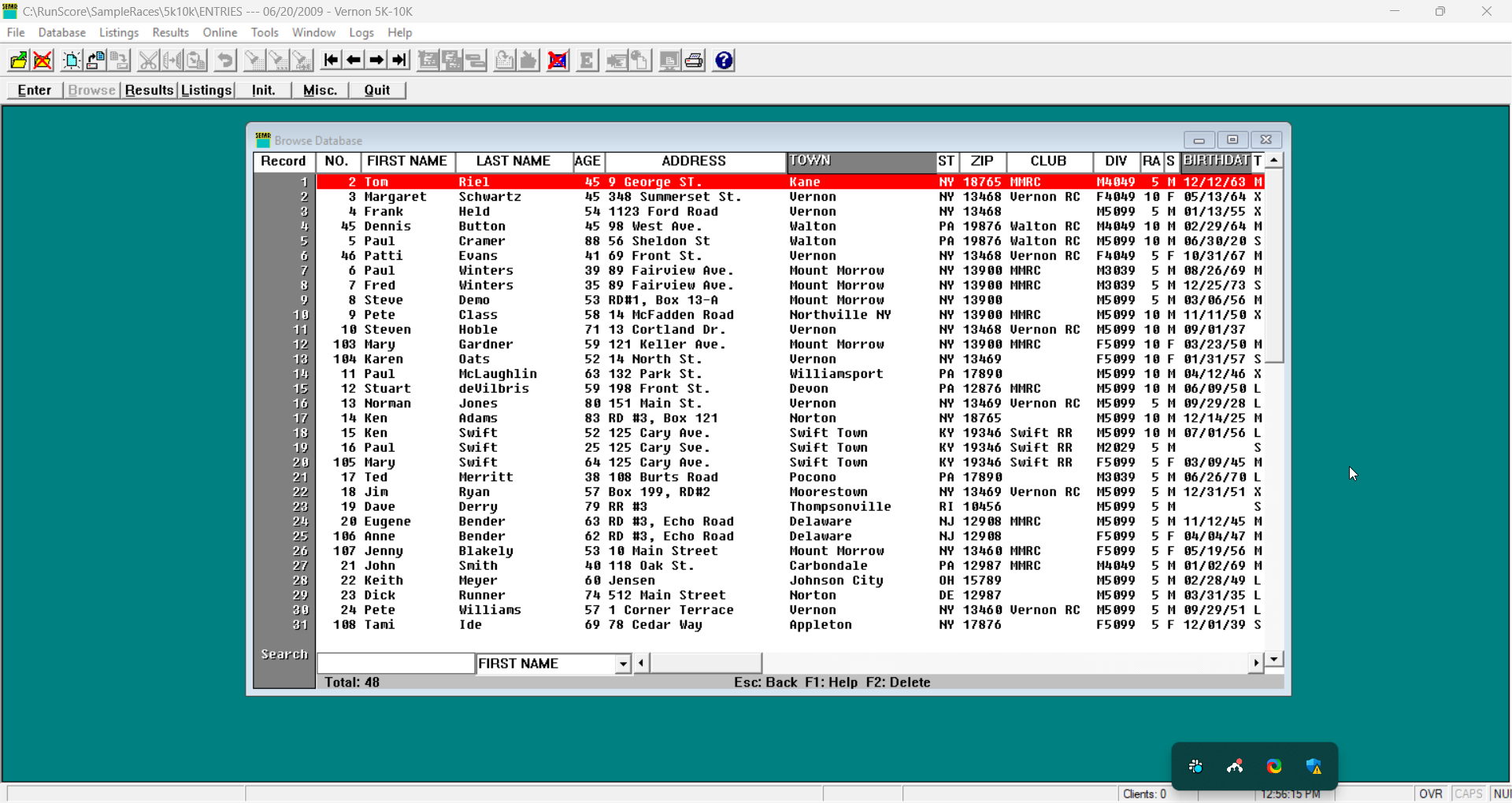
The Browse screen displays many records simultaneously in a spreadsheet-style layout, making it easy to:
- Spot missing or incorrect data across multiple entries
- Sort and scan by different fields
- Quickly locate a participant before switching to the Enter/Edit screen for editing
Press F1 while on the Browse screen to learn about its full set of sorting and filtering capabilities.
With participants in your database, you're ready to start capturing finish times. Head to Race Results.