Navigating Your RunScore Workspace
When you first open RunScore Server, you'll be greeted by your main workspace — the control center for everything you'll do in the program. This page walks you through each area of the screen so nothing feels unfamiliar when you need it most.
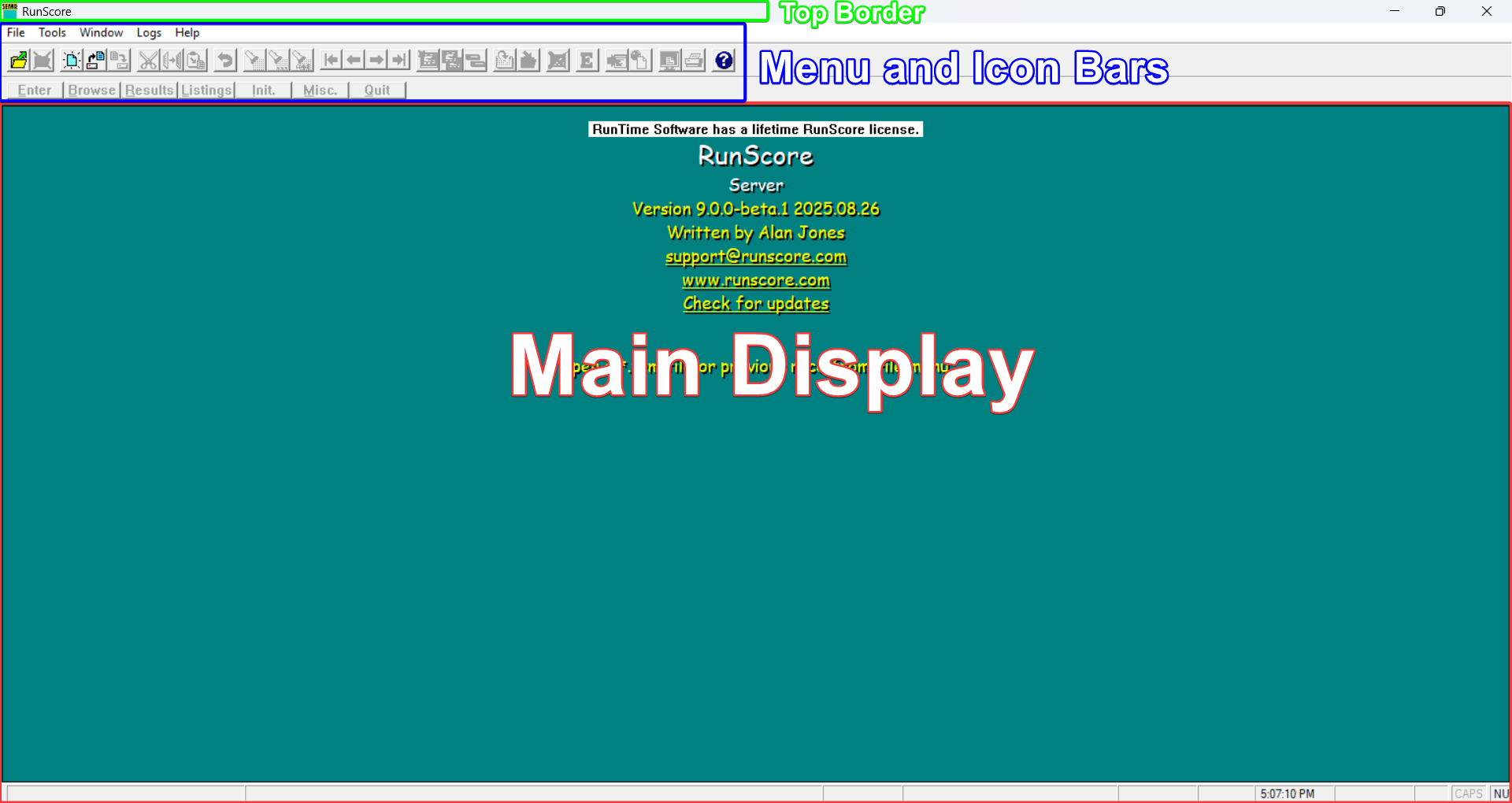
The top border
At the very top of the RunScore window, you'll see the RunScore icon and program name. Once you open a race file, this area updates automatically to display the race name, date, and location — a quick reminder of which event you're currently working on.
The menu bar
Just below the top border is the menu bar, which contains five menus:
| Menu | What you'll find there |
|---|---|
| File | Open, save, and close race folders |
| Tools | Registration, preferences, and advanced utilities |
| Windows | Manage multiple open screens |
| Logs | Review activity logs and error messages |
| Help | Access the built-in Help system |
The icon bar
Directly below the menu bar is a row of clickable icons that give you one-click access to common actions. When you first open RunScore without a race loaded, most of these icons will appear grayed out — this is completely normal. They activate as soon as you open a race file.
The icon bar also includes navigation arrows that become active when you're viewing a record:
| Arrow | Action |
|---|---|
|<- | Jump to the first record |
<- | Move to the previous record |
-> | Move to the next record |
->| | Jump to the last record |
The Master Menu buttons
Below the icon bar you'll find a row of large Master Menu buttons: Enter, Browse, Results, Listing, Init, Misc, and Quit. These are your primary navigation tools for moving between RunScore's main screens.
Like the icons above, these buttons start out grayed out and become active once you open a race. This is by design — it guides you through the correct workflow rather than letting you accidentally click into a function before a race is ready.
You'll use these buttons constantly throughout the day: Enter to manage participants, Results to view finish times, Listing to generate reports, and Init to reset or initialize data before a race.
The main display area
The large central area of the screen is your desktop. When no race is open, it shows:
- Your registration name and software version number, confirming your license is active
- Clickable links to:
- support@runscore.com — for technical help
- The RunScore website — for downloads and documentation
- Software updates — to check for and install the latest version
At the far right of the bottom border, you can see the current status of your keyboard's Num Lock and Caps Lock keys — a small but useful detail when you're typing bib numbers quickly.
The built-in Help system
RunScore includes a comprehensive Help system that's context-sensitive: press F1 on your keyboard from any screen, and Help will open directly to information about that specific screen.
Whenever you're unsure what a button, field, or screen does, press F1. The Help system explains every function in detail without requiring you to leave what you're doing.
Before opening a race, it helps to understand how RunScore organizes your race files. Head to Race Folder Basics.