Initialize External Timers
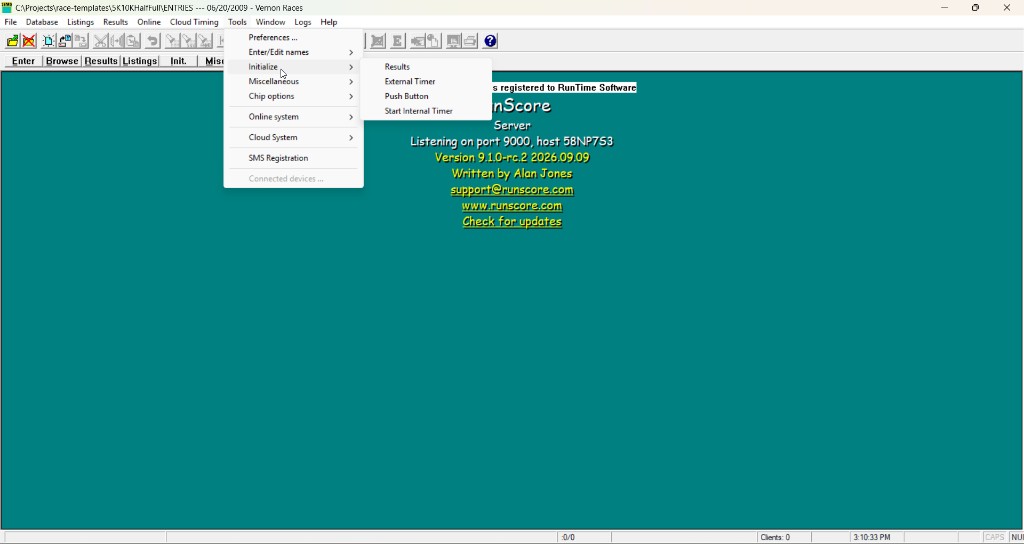
Every clock-based or chip/tag device — whether it is listed under External Timers or Chip/Bib Timing — is wired up from the same dialog. Depending on your menu layout, open it from either:
- Tools → Initialize → External Timer, or
- Init. → Initialize External Timers...

RSServer offers 8 timer slots; RSClient offers 4. Each slot configures one device independently, so you can run several timers at once (for example, a finish-line timer on one slot and a bar code reader on another).
Columns
| Column | What it does |
|---|---|
| Device | Pick the timer/system from the dropdown. See the External Timers and Chip/Bib Timing tables for the full device list. |
| Port | COM port number for a serial connection, or the TCP port number when TCP is checked (see below). |
| Event | Which RunScore event/lane this slot's data goes to. * is a wildcard — the device itself tells RunScore which lane or event to use. |
| Baud | Serial baud rate. Hidden once TCP is checked — TCP devices don't use it. |
| Start/Stop | Pause or resume receiving data from this slot without losing its configuration. Stop skips the slot entirely — RunScore does not open the port. TimeTech timers still buffer times internally; after you set the slot back to Start, retrieve them from the timer using its Transmit Times mode. |
| TCP | Check this if the device connects over TCP/IP instead of a serial port. For most devices the device is the TCP server and RunScore connects out as the client. For server-mode devices (listed below) RunScore instead listens for the device to connect in. |
| Adjust Day | Most useful with chip/tag systems such as the RunScore Open Interface. When checked, if an incoming passing's date is up to 6 days before the configured Race Date, RunScore adds the missing days automatically. |
For these devices, RunScore acts as the TCP server (listens for incoming connections): ChampionChip, MyLaps BibTag, MyLaps ProChip, ChronoTrack, J-chip, Active Timing, RunScore Open, and race|result.
All other TCP devices expect RunScore to connect out to them as a client.
Port numbers: TCP vs. serial
- TCP checked: the port must be 1024–65535.
- TCP unchecked (serial/COM): the port must be 1–4096.
Older documentation for some devices suggests using a TCP port in the 49152–65535 "dynamic" range as a convention to avoid conflicts with other software — that's a suggestion, not a requirement. RunScore itself accepts any TCP port from 1024–65535.
Keyboard-mode devices
Some devices — a serial-port bar code reader, for example — send data through the serial port as if it were typed on the keyboard. Select Key Board as the Device for these; RunScore places the incoming characters straight into the keyboard buffer, the same way the reader's own driver would.
Debug mode
If a device isn't sending times, open Enter/Edit Results and press Alt+D to turn on debug mode. A pop-up shows the raw characters as they arrive — or their hex values for TimeTech, TimeTech Select, TimeTech X, Push Button, Winning Time, and Ultrak — which helps tell a cabling problem from a configuration problem.