Entering and Managing Participant Data
With your race configured, it's time to get your participants into the system. This page covers the Enter/Edit Names screen — RunScore's primary interface for adding and managing individual participant records — along with the keys you use to search, save, duplicate, and clean up entries.
This page is about using the screen day-to-day. Two related pages cover the setup behind it:
- Tools → Enter/Edit Names — changing the screen's field layout, Alt-Keys, and other submenu utilities
- Entries.ini Reference — race-wide rules (field mapping, lookups, division logic) applied by
Alt+F4Update All
Accessing the Enter/Edit Names screen
There are two ways to open this screen:
- Click the Enter button on the Master Menu (the quickest method)
- Or go to Database → Enter/Edit Names from the menu bar
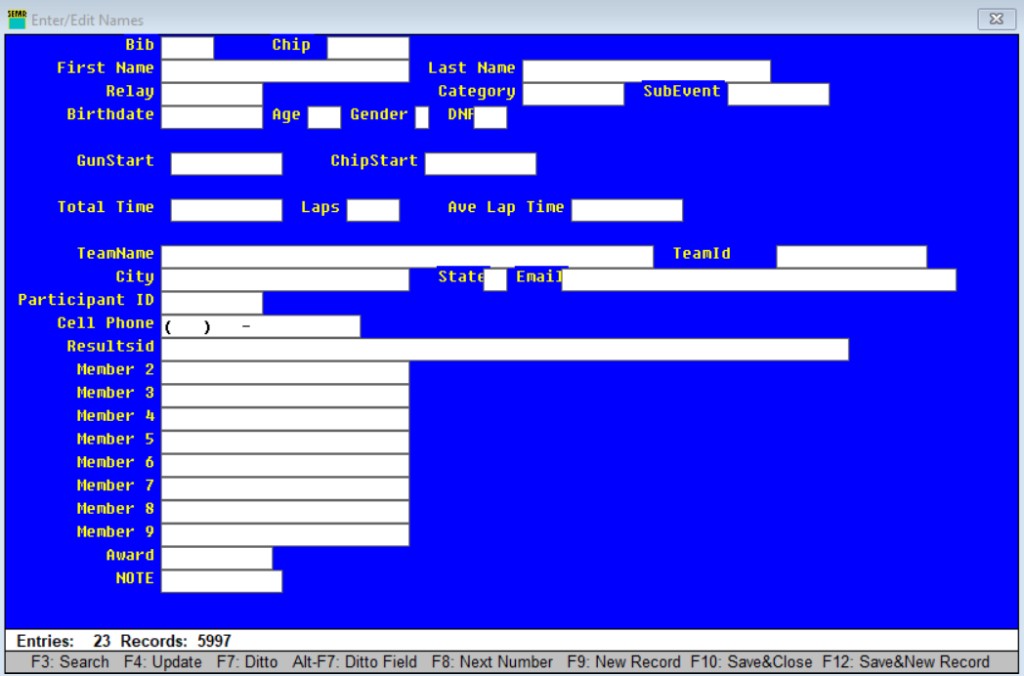
When the screen opens with a blank form, RunScore is ready for a brand-new record. The bottom of the screen shows the entry/record counts and a function-key legend.
The status bar shows something like Entries: 302 Records: 310 Curr Rec: 36. Entries counts records that have a bib number assigned (bib is the key field); Records counts every record in the database, whether or not a bib has been assigned yet. Record 0 (the Unregistered Runner Number entry) isn't included in either count.
A gap between the two — Entries: 302 against Records: 310 — means 8 participants don't have a bib number yet. Fix this before the race starts. The sample races include ready-to-run listing files for exactly this check: MissingBibs.2.lst finds every registered runner without a bib. For broader data-quality checks (missing age, sex, division, chip, and more), use MissingData.2.lst, or MissingDataField.2.lst to check one specific field. See Listings & Awards for how to run a listing file.
Adding new participant records
Start typing each participant's information into the fields, working from your entry forms or registration list.
If a record is already loaded and you start typing, you overwrite that participant's data. Before entering a new record, get a blank form — press F9, or navigate past the last existing record with PageDown.
F9— Clears the screen and gives you a fresh blank record ready for new data- The bib number field can be left blank during initial entry and assigned later, or RunScore can auto-assign the next available number when you save
F8— Next Number: fills the bib field with the next auto-increment value (only meaningful when Auto Increment is enabled in Preferences)
Saving records and moving efficiently
After filling in a participant's details, choose a save key based on what you want next:
| Key | Action |
|---|---|
F4 | Update — save the current record and stay on it for review or further editing |
F10 | Save & Close — save the current record and close the Enter/Edit Names window |
F12 | Save & New — save the current record and open a new blank record (next bib auto-assigned when Auto Increment is on) |
Esc | Exit — prompts to save unsaved changes when the "Check for Record Changed" preference is enabled |
For a long list of participants, use F12: fill in details → F12 → new blank record → repeat. F10 saves and closes the window — it is not a "save and continue" key.
Alt+F10 stores the current field values as defaults for new records, written to <entries>.def.xml in the race folder. Those defaults refill the form after F9 / F12 clears it. Example:
<defaults>
  <field name="STATE" value="NY"/>
  <field name="CLUB" value="TCRC"/>
</defaults>
Finding and searching existing records
F3— Search forward from the current position; type the start of a name or bib in the focused field firstAlt+F3— Search backwardsPageUp/PageDown— Step through records one by one (also saves changes on the record you leave)Ctrl+Home— Jump to the first record (does not auto-save — save or update first)Ctrl+End— Jump to the last record (does not auto-save — save or update first)
Duplicating data: F7 and Alt+F7
Two related shortcuts cover whole-record and single-field copy:
| Key | Action |
|---|---|
F7 | Ditto (whole record) — saves the current record, then opens a duplicate as a new unsaved entry with the same field values. Edit what differs, then press F12 to add it. |
Alt+F7 | Ditto Field — copies only the focused field from the previous record, then advances to the next field |
Use F7 when the next participant is almost identical (family members, same club). Use Alt+F7 when you only want to reuse selected fields (city, state, team) as you tab through the form.
Alt-Keys: one-key common values
Hold Alt and press a letter while the cursor is in a field to fill in a predefined value — for example, Alt+B in the CITY field could fill in "Birmingham" along with its state and ZIP prefix. Alt-Keys are configured per field (or globally) via Tools → Enter/Edit Names → Edit Alt-Keys — see Edit Alt-Keys.
Updating many records at once
Alt+F4 (Update All) recalculates lookup and derived fields (division, age group, and similar) for every participant record using the current race configuration (see Entries.ini Reference), after a confirmation prompt.
Use it after changing division age brackets or age-group rules, so existing participants pick up the new assignments without re-entering each one by hand.
Update All is a bulk operation. Confirm the prompt only when you intend to refresh derived fields for the whole database.
Alt+F4 is only available on RSServer. On RSClient it shows "Updating ALL entries can only be done from server." — run it from the server machine instead.
Deleting and clearing
| Key | Action |
|---|---|
F2 | Delete the current record (confirmation prompt unless delete is armed) |
Ctrl+F2 | Arm / disarm delete — when Preferences requires arming, F2 does nothing until armed |
F5 | Clear the focused field on every record in the database (double confirmation; cannot be undone) |
Ctrl+F5 | Arm / disarm clear-field (same Preferences "must arm" setting as delete) |
Ctrl+F9 | Arm / disarm F9 (New Record). Armed by default — usually you can press F9 without this step |
Delete (F2), Clear Field (F5), and their arm keys (Ctrl+F2, Ctrl+F5) only work on RSServer. On RSClient, F2 and F5 show a message directing you to Browse (delete) or explain the operation isn't available there; the arm keys have no effect.
F5 does not clear only the current record. It blanks that field on every entry after you confirm. Prefer editing a single cell, or use Browse inline edit, when you only need one record changed.
Browse from Enter
For a spreadsheet view of many records at once:
- Click the Browse button on the Master Menu, or
- Press
F6from Enter/Edit Names to open Browse on the current record
Browse is also where database backup lives (F11). Backup is no longer available from Enter — if you press F11 there, RunScore tells you to use Browse instead.
For sorting, searching, deleting, backing up, and the full Browse key reference, see Browse Database.
Key reference
| Key | Action |
|---|---|
F2 | Delete current record (server only) |
Ctrl+F2 | Arm / disarm delete (server only) |
F3 | Search forward |
Alt+F3 | Search backward |
F4 | Update (save, stay on record) |
Alt+F4 | Update All — bulk lookup/derived-field refresh (server only) |
F5 | Clear focused field on all records (server only) |
Ctrl+F5 | Arm / disarm clear-field (server only) |
F6 | Open Browse |
F7 | Ditto whole record (then F12 to add) |
Alt+F7 | Ditto current field from previous record |
F8 | Next bib number |
F9 | New blank record |
Ctrl+F9 | Arm / disarm New Record |
F10 | Save & Close |
Alt+F10 | Save current values as defaults |
F12 | Save & New |
Esc | Exit — prompts to save if "Check for Record Changed" is enabled |
PageUp / PageDown | Previous / next record (saves changes first) |
Ctrl+Home / Ctrl+End | First / last record (does not auto-save) |
With participants in your database, you're ready to start capturing finish times. Head to Race Results.