Registration & Updates
RunScore is free to use — you don't need to buy anything. To unlock all features, register your copy. Registration is a one-time step.
Registering RunScore
Registration links your installation to a License name and License key. When you sign up for the first time, RunScore copies the license key to your clipboard. Save it somewhere safe so you can register your other computers.
First-time registration
Use this flow on your main scoring computer, the first machine where you install RunScore.
-
Open RunScore Server (double-click the RSServer icon on your desktop).
-
From the menu bar at the top of the window, click Help.
-
Select SignUp Form.
-
Fill out the form and click Sign Up.
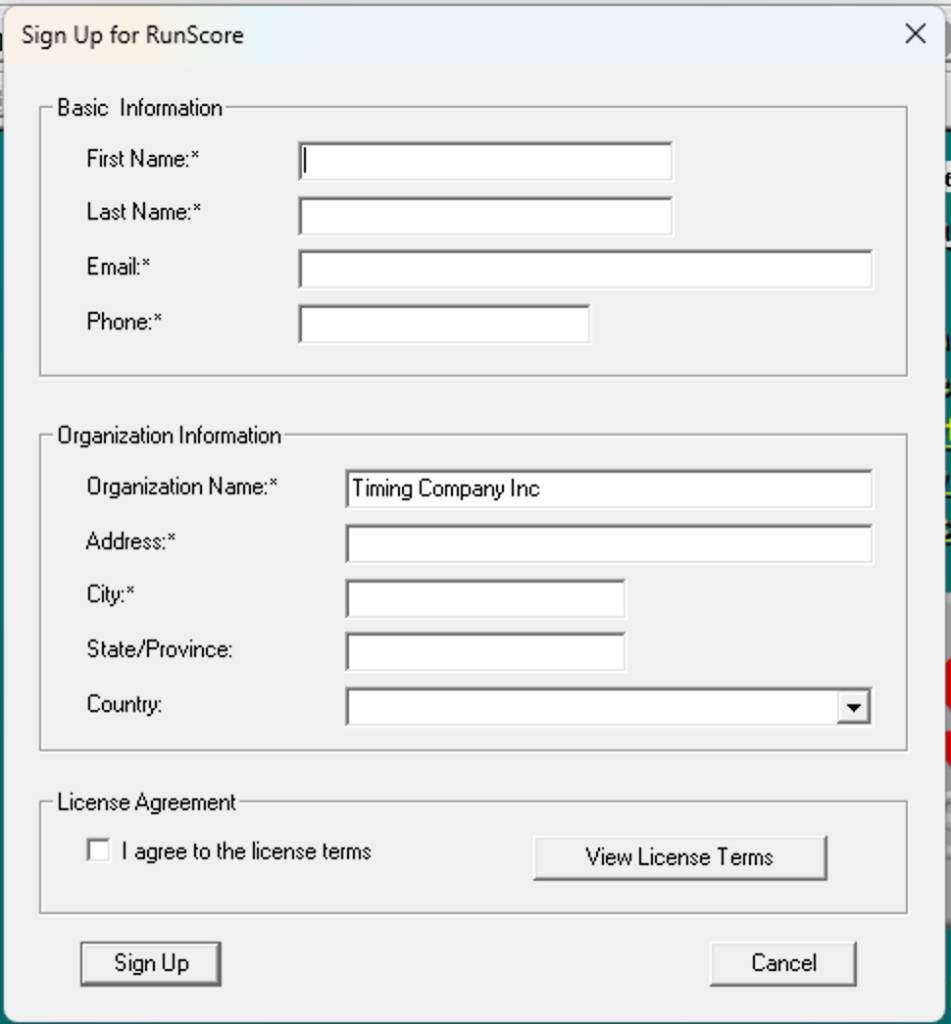
When you submit the form, a confirmation popup appears and RunScore copies the license key to your clipboard. Save the key so you can register your other computers. You can copy it again later with Help > Copy License (available once this computer is registered).
-
Restart RunScore. RunScore then registers this computer automatically — you're done on the machine where you signed up.
Register on additional computers
If you already have a registration key for RunScore version 9 or later, use this flow on every other computer in your setup.
- Open RunScore Server (double-click the RSServer icon on your desktop).
- From the menu bar at the top of the window, click Help.
- Select Register RunScore.
- In the dialog that appears, enter your License name and License key (the values you saved from your first computer), then click Register.
- Restart RunScore.
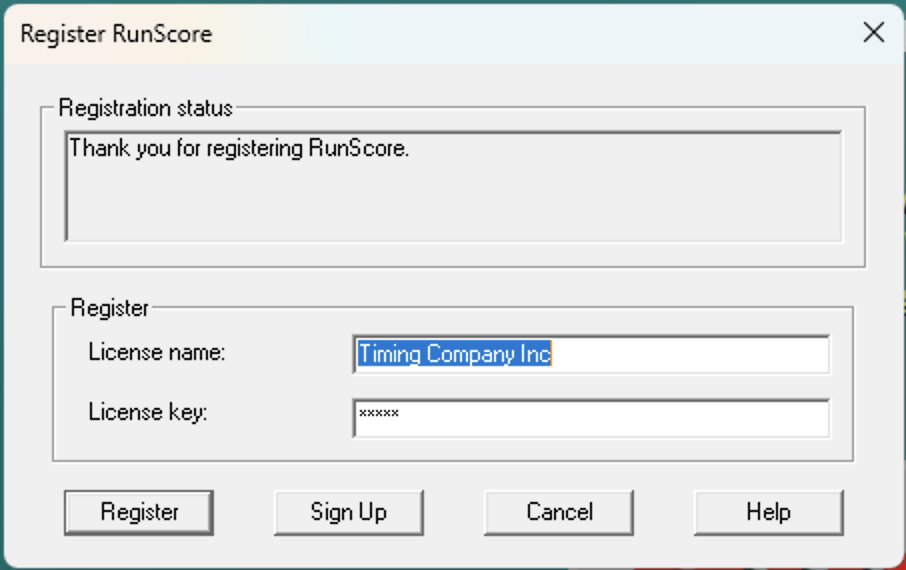
Even a single character difference, such as an extra space, different capitalization, or a missing dash, will prevent activation. Copy and paste directly from where you saved your key to avoid typos.
Registering unlocks every feature. Your registration is permanent for the installed version, so you won't need to re-register after restarting.
Keeping RunScore up to date
RunScore checks for updates automatically. When you start RunScore — Server or Client — and a newer version is available, an Update Available window appears:
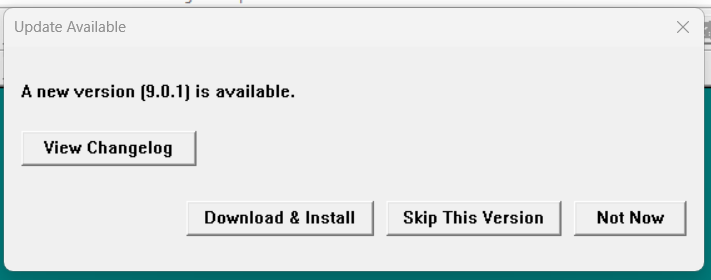
You have four choices:
- Download & Install — downloads and installs the new version for you. If a required component is missing (the .NET Desktop Runtime or RunScore's updater), RunScore opens the installer in your browser instead so you can run it manually.
- View Changelog — opens the release notes so you can see what changed.
- Skip This Version — hides this version so RunScore won't prompt you for it again.
- Not Now — closes the window and reminds you later.
RunScore checks at most once a day, so the window won't interrupt you every time you open a race. You can also check any time using the Check for updates link on the main screen.
Updates are always free. Installing the latest version brings you fully up to date — you don't need to install intermediate versions one by one.
Newer versions often include important fixes, so update before a big event.
For a tour of everyday screens (Enter, Browse, Results, Listings), see Welcome to RunScore.