Welcome to RunScore
RunScore is a Windows program for timing and scoring road races, cross country, and other running events. You build a database of participants, capture finish times by hand or from timing hardware, then score, rank, and publish the results.
This page maps the documentation: where to start, and where to go for each part of running a race.
What RunScore does for you
- Manages participant data — store names, ages, bib numbers, clubs, and any custom fields your event requires
- Captures finish times — manually, from timing mats, or from external timing devices
- Scores and ranks results — by age group, gender, division, team, and more
- Produces reports and awards — formatted results lists, labels, exports, and live results feeds
A tour of the Master Menu
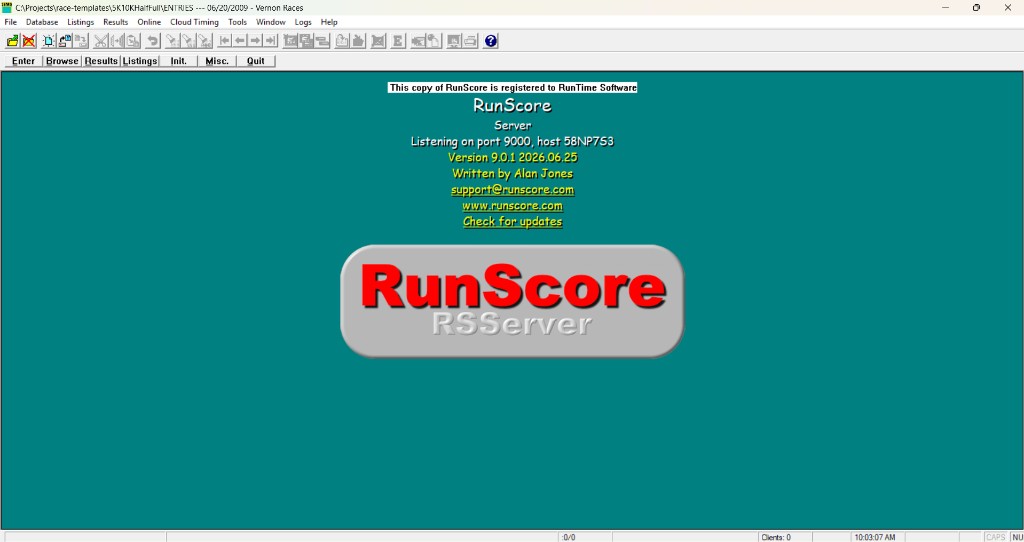
Once a race is open, RunScore's Master Menu buttons (Enter, Browse, Results, Listings, Init., Misc., Quit) are your fastest way to move between screens. Each one maps to a section of this documentation:
| Master Menu button | What it does | Documentation |
|---|---|---|
| Enter | Add and manage participant records | Enter |
| Browse | Spreadsheet view of your whole database | Browse |
| Results | Capture finish times and bib numbers | Results |
| Listings | Run and edit results/awards reports | Listings |
| Init. | Reset results, or initialize an external timer, push button, or internal timer, before a race | Race-day checklist · Initialize External Timers |
| Misc. | Shortcut into Tools → Miscellaneous | Tools → Miscellaneous |
| Quit | Close the race and exit RunScore | — |
The top menu bar
Above the Master Menu is a menu bar: File, Database, Listings, Results, Online, Cloud Timing, Tools, Window, Logs, Help. You see this full set while the Master Menu has focus — a race is open, but no data screen (Enter, Browse, Results, Listings) is active.
Several of its items open the same screens as the Master Menu buttons, just with an extra click. For example, Database → Browse does the same as a single click on Browse. So do Database → Enter/Edit Names, Listings → Reports, and Results.
When you open one of those screens, the menu bar changes to that screen's own menus. The Results screen, for example, adds an Options menu for timing settings. Window only arranges open windows — Cascade, Tile, Arrange Icons, and Close All — and isn't covered here.
The rest:
| Menu | Documentation |
|---|---|
| File | Open, save, and close race folders — see Race Folder Basics |
| Online | Online |
| Cloud Timing | Timing → Cloud Timing |
| Tools | Tools |
| Logs | Event log viewer — see Runtime Validator for what writes to this log |
| Help | Help |
New to RunScore? Start with the basics
Work through RunScore Basics first — it walks you through installation, opening your first race, and configuring it, in order. Once your race is set up, come back to the tables above for each day-to-day task.
Head to Installation to get RunScore on your computer.
Recent changes
For release notes and what changed in each version, see the Changelog.