Crafting Results Reports and Awards
You've entered your participants, captured your finish times, and reconciled your data. Now comes the satisfying final step: generating the printed or digital results and awards your participants have been waiting for. RunScore handles this through two types of special files — Listing files and Macro files.
You don't need to be a programmer to use these. The race-templates repo ships complete sample race folders with ready-to-run listings for common outputs. Understanding what these files are will help you run them with confidence and, over time, customize them for your own events.
RunScore Listing files (.LST): your blueprint for results
Think of a Listing file as a detailed instruction sheet for RunScore. Each .lst file contains a sequence of commands that tell RunScore:
- Which participants to include (by division, gender, event, etc.)
- How to sort and rank them
- What fields to display (name, age, club, bib, time, place, etc.)
- How to format the output (columns, headers, page breaks)
When you run a listing file, RunScore reads these instructions, processes your race data, and produces a formatted results report — ready to print or export.
Each sample race folder has a README.md that explains how to copy and open it. In the Listings window, select a listing to see its purpose in the comment bar. To write or edit listing commands, see the Programming Primer.
RunScore Macro files (.RSM): automating complex tasks
Macro files take automation a step further. A .rsm file is like a mini-program that can run multiple listing files in sequence, apply conditional logic, and chain operations together — all with a single click.
Common uses for macros include:
- Running all your results reports (overall, by age group, by gender, by team) in one go
- Generating awards for each division automatically
- Uploading live results to a website during the race
Macros can also work with Parameter Passing files — special files whose names start with an @ symbol. These pass specific instructions to a macro, such as which age group to process, allowing a single macro to produce results for many different categories.
The EXCLUDE.RSM macro determines who to exclude by running its own ranking — it does not copy the Overall winners list. If your Exclude listing uses different ranking commands than your Overall listing (especially a missing Dq Field), the wrong people can get excluded. See the Exclude command reference for the full consistency checklist.
Accessing and running your listing files
All the listing files available in your current race folder are visible from the Listings window:
- Click the Listings button on the Master Menu.
- The screen displays all
.lstfiles in your race folder.
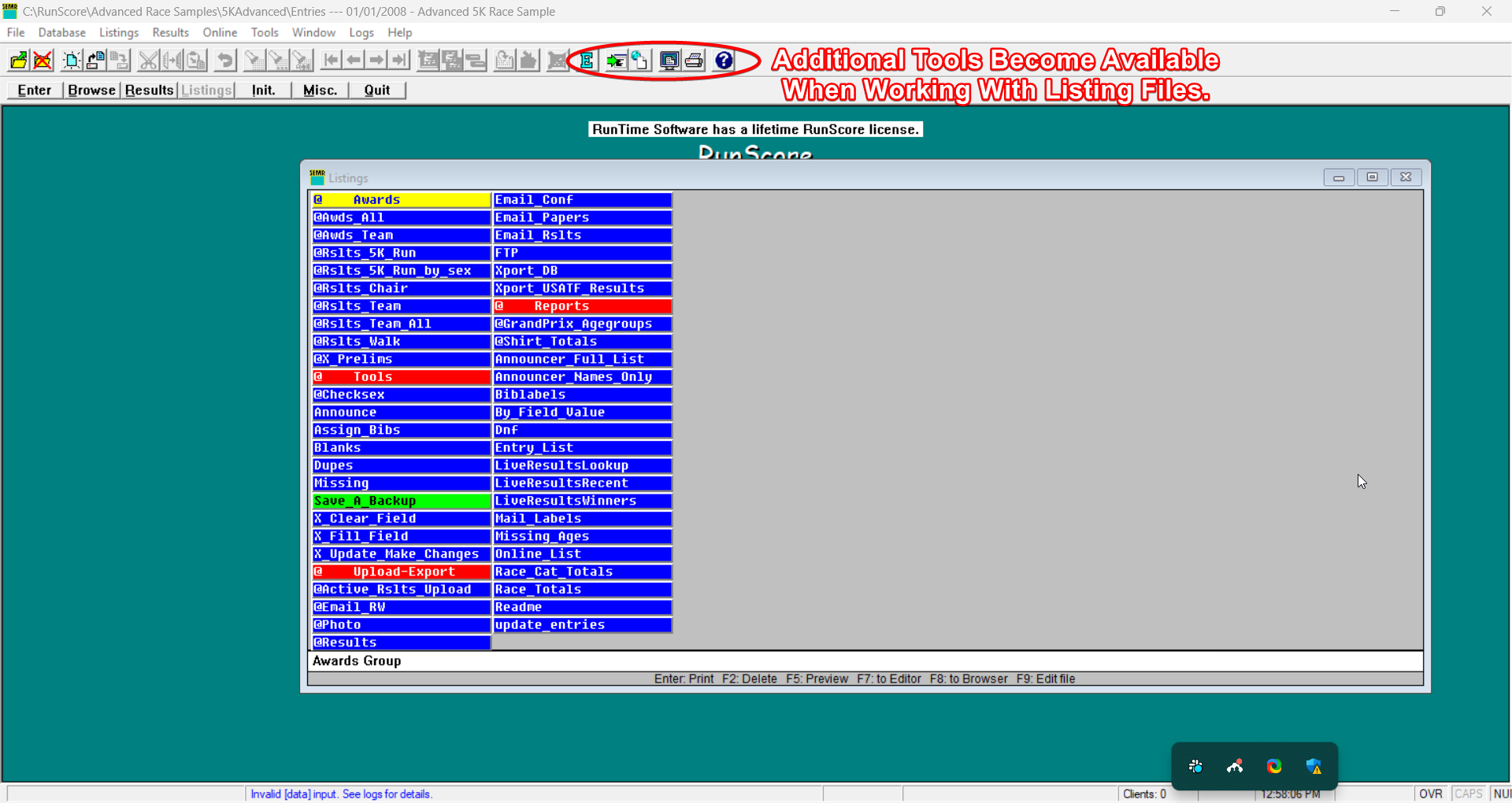
- Select a listing file from the list.
- Use the icons on the icon bar (which become active when the Listings screen is open) to run, view, or edit the selected file.
For the complete window reference — keyboard shortcuts, color coding, priority sorting, and right-click options — see Listings Window.
Copy a folder from race-templates (start with 5K/), open it in RunScore, and run a few .lst files from the Listings window. That is the fastest way to see what listing files produce before you edit your own.
Awards ceremonies (@awards)
Each sample race has an awards listing that prints an awards list: @awards in the 5K sample, one per distance (such as @awards5K) in the others. The matching @awards2RR… listing uploads the same awards to Race Roster instead of printing them.
| To… | Do this |
|---|---|
| Change how many winners each category gets | Edit the first number on each line |
| Change or add age groups, including masters | Add or remove AGERES.RSM lines, for example AGERES.RSM 3 MALE M 40 99 |
| Let overall winners also win age-group awards | Delete the EXCLUDE.RSM line in @Overall.rsm |
| Add a division such as wheelchair | Create an .RSM that selects on that field and call it from the awards listing |
For most races, editing the awards listing is enough: change the number of winners, or add and remove AGERES.RSM lines for age groups such as masters. Divisions such as wheelchair, and team awards, need their own .RSM files.
Overall winners are kept out of age-group awards by the EXCLUDE.RSM line in @Overall.rsm. If your race allows double awards, delete that line. Before race day, check Keeping Exclude consistent with Overall.
Parameter syntax and worked examples: Parameter Parsing Listing Files.
Custom categories
For non-standard categories (mixed teams, family groups), write one .RSM macro that uses %1, %2, … where the category values go, then call it once per category from an @ listing, the same pattern the awards listing uses. See Parameter Parsing Listing Files.
Where to go from here
You've now completed the RunScore Basics guide — from installation all the way through generating your first results. Here's a quick recap of what you can do next:
| Goal | Where to go |
|---|---|
| Learn to write your own listing files | Programming Primer |
| Configure advanced race settings | Entries.ini Reference |
| Look up a specific RunScore command | Commands Reference |
| Get support | support@runscore.com |
RunScore is a deep and powerful program, and every event you manage will teach you something new. The comprehensive Help system is always one F1 keystroke away on any screen, and the RunScore website has the latest documentation and software updates.
Happy scoring!