Listings Window
The Listings window is RunScore's file picker and launcher for listing files (.lst). It displays every .lst file in the current race folder, lets you select one, and run it — producing results reports, awards, online uploads, and more.
Open it from the Listings button on the Master Menu, from Listings > Reports on the menu bar, or press L from the Master Menu keyboard.
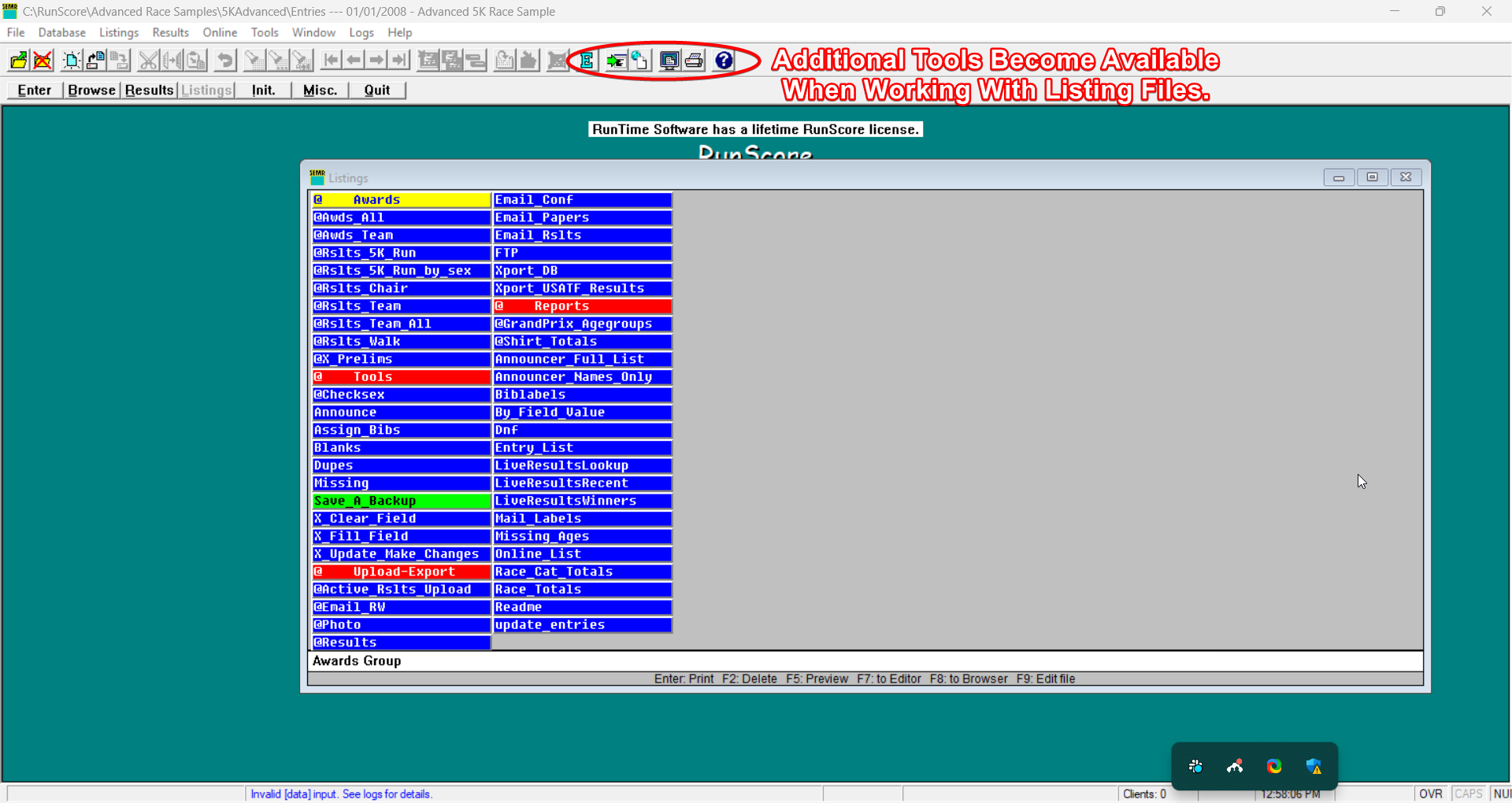
The bottom of the window has two areas: a comment bar that shows a description of the selected file, and a key legend that lists the available function keys.
Selecting and running a listing file
- Open the Listings window.
- Click a file to select it (the selected file is highlighted in yellow).
- Press Enter to run the file, or use one of the function keys:
| Key | Action |
|---|---|
| Enter | Run the selected listing (print to default printer) |
| F5 | Preview the output on screen |
| F7 | Send the output to the built-in text editor |
| F8 | Send the output to your web browser |
| F9 | Open the listing file itself for editing |
| F2 | Delete the selected file (server only) |
You can also double-click a file to run it immediately.
To learn what the commands inside a listing file mean (Header, .include, Pace, and the rest), see the Programming Primer — that is the only line-by-line walkthrough on this site.
By default, RunScore sends listings directly to the default printer — no print dialog appears. To choose a printer or change settings before each print, enable Printer Dialog Box in Preferences.
If a file's color is set to Gray (Inactive), pressing Enter shows an error: "Can not use a grayed-out listing!" along with the filename. Use the right-click menu to change the file to an active color, or press Ctrl+X to toggle it back to Blue (default).
Browser output and CSS (F8)
F8 sends listing output to your default web browser as an HTML table. RunScore uses the stylesheet named after your race database in the race folder, usually entries.css. (It may also fall back to runscore.css in the RunScore program folder, but don't rely on that.)
When RunScore finds a stylesheet, it embeds it in the page and uses your race name (RACE NAME in entries.ini) as the page title. Without a stylesheet, you get a plain HTML table.
To style browser output:
- Copy
runscore.cssfrom the RunScore program folder into your race folder. - Rename the copy after your race database, usually
entries.css. - Edit it, then press F8 on a listing to check the result.
| Selector | What it styles |
|---|---|
.header, h3 | Text from a listing Header block |
body, table | Body and table font |
th | Column header row |
td | Data cells (alignment is set inline; use !important to change it) |
.footer | Text from a listing Footer block |
To save the HTML to a file instead of opening a browser, add Output Format HTML and a Destination such as results.html.
No Column Headers removes the table's header row. Header text you add in a Header block appears above the table as a heading, so it can't line up with the columns.
Keyboard navigation
Arrow keys
| Key | Action |
|---|---|
| Up / Down | Move selection one file |
| Left / Right | Move selection one column |
| Home | Jump to the first file |
Letter-key jump
Type any letter (A–Z), digit (0–9), or @ to jump to the next file whose name starts with that character. The search wraps around — if no match is found between the current position and the end of the list, it continues from the beginning.
Pressing the same letter again advances to the next file starting with that letter.
Mouse selection
- Click — select a single file (deselects all others).
- Ctrl+Click — toggle an individual file without deselecting others (multi-select).
- Shift+Click — select a range from the previous selection to the clicked file.
Multi-selection applies to Set Color and Set Priority — all selected files receive the same assignment.
The comment bar
When you select a file, the comment bar at the bottom displays a description extracted from the file's first line. RunScore reads the comment in one of three ways:
| First line starts with | Comment extracted from |
|---|---|
COMMENT (command) | Column 21 onward |
| A space | Column 2 onward |
An asterisk (*) | Column 2 onward |
If the first line does not match any of these patterns, the comment bar is blank.
Right-click context menu
Right-click a file to open the context menu.
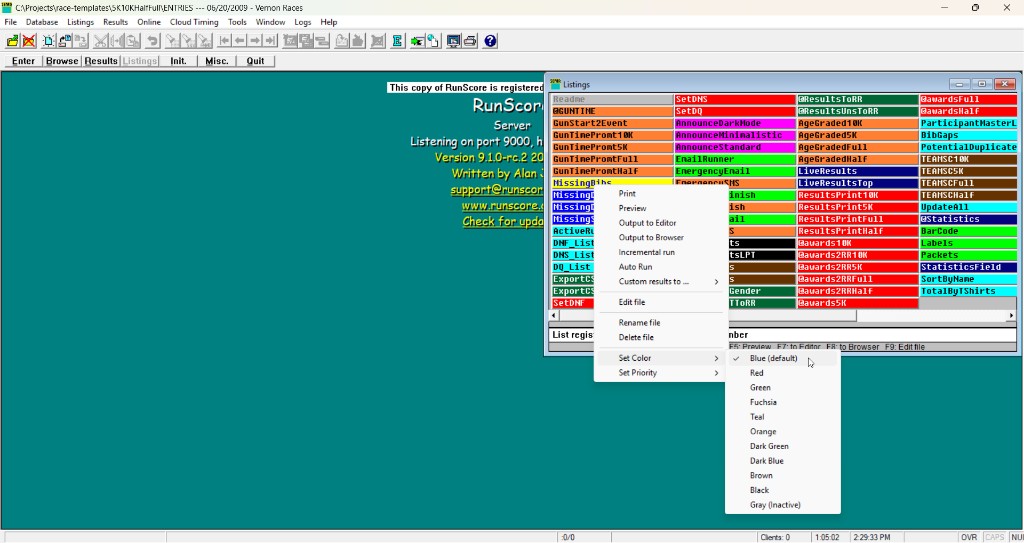
The menu provides:
| Item | Description |
|---|---|
| Run the listing (same as Enter) | |
| Preview | Preview on screen (same as F5) |
| Output to Editor | Send output to the text editor (same as F7) |
| Output to Browser | Send output to the web browser (same as F8) |
| Auto Run | Schedule this file to run on a repeating interval |
| Custom Results to... | Submenu for sending output to an online system — see Online systems below |
| Edit file | Open the listing file for editing (same as F9) |
| Incremental run | Toggle incremental live-results upload for this file — see Publish Live Results |
| Rename file | Rename the selected file |
| Delete file | Delete the selected file (confirmation required) |
| Set Color | Assign a display color (see Color coding) |
| Set Priority | Assign a sort priority (see Priority sorting) |
On RSClient, the context menu is limited to Print, Preview, Output to Editor, Output to Browser, and Edit file. Color, priority, delete, rename, Incremental run, and auto-run options are only available on RSServer.
Online systems
The exact items under Custom Results to... depend on which online system is active (Tools → Online system). This site documents Race Roster, whose submenu has two items:
| Item | Race Roster behavior |
|---|---|
| Editor | Preview the upload output in the built-in text editor |
| Online | Prompts for the Race Roster sub-event ID, then uploads. See Publish Live Results and Publish Unstructured Results |
RunScore also supports RunSignUp, MyLaps Registration, ChronoTrack Live, and TFRRS as online systems. With TFRRS selected, the submenu is TFRRS Results to. (Editor / Online) — see Publish XC Results. Race Roster uses Custom Results to...; other vendors use their own submenu labels.
Color coding
Each listing file can be assigned a color. The color is purely visual — it helps you organize files by purpose or status (e.g., red for race-day essentials, green for post-race, gray for inactive).
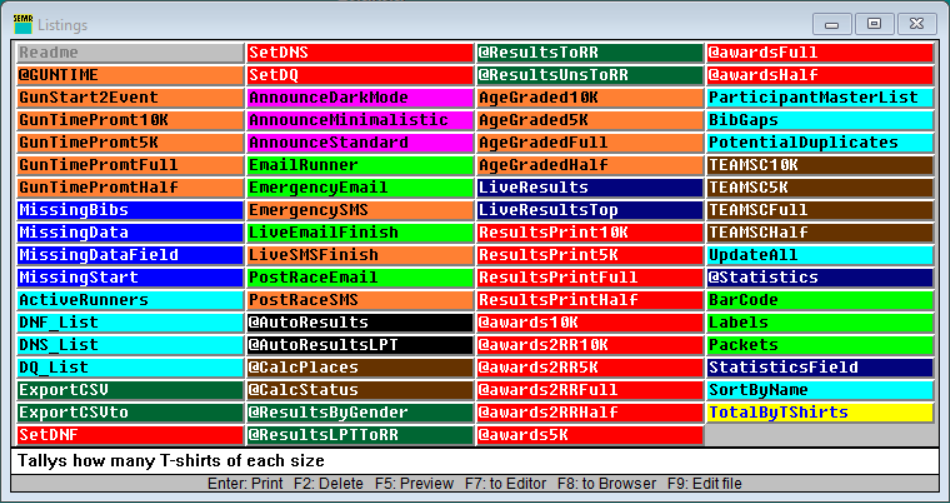
Available colors (RSServer)
| Color | Code | Text | Background |
|---|---|---|---|
| Blue (default) | — | White | Blue |
| Red | R | White | Red |
| Green | G | Black | Green |
| Fuchsia | F | Black | Fuchsia |
| Teal | T | Black | Teal |
| Orange | O | Black | Orange |
| Dark Green | Q | White | Dark Green |
| Dark Blue | S | White | Dark Blue |
| Brown | P | White | Brown |
| Black | M | White | Black |
| Gray (Inactive) | X | Dark Gray | Light Gray |
Ctrl+X toggles a file between Gray (Inactive) and Blue (default). The original color is not preserved — a Red file toggled to Gray and back becomes Blue. Gray files are blocked from running.
How colors are stored
Colors are encoded in the filename. A file named results.R.lst has color Red. The display name in the Listings window strips the color code — you see results, not results.R.lst. Setting a color via the right-click menu renames the file automatically.
Priority sorting
Priority determines the display order of files. Files with a priority sort before files without one, and lower numbers sort first. Within the same priority, files sort alphabetically (case-insensitive).
Priority values
| Priority | Effect |
|---|---|
| None (default) | File sorts alphabetically after all prioritized files |
| 1 (highest) | Sorts first |
| 2 – 9 | Sort in ascending order |
How priorities are stored
Like colors, priorities are encoded in the filename. A file named results.1.lst has priority 1. A file with both priority and color is named results.1.R.lst. The Listings window strips these codes from the display name.
Auto Run from the Listings window
Right-click a file and select Auto Run to schedule it to run on a repeating interval. RunScore prompts you to choose from a fixed set of intervals: 10 s, 30 s, 1 min, 2 min, 5 min, 10 min, or 15 min.
While Auto Run is active, the file blinks in the Listings window — its foreground and background colors alternate on each screen refresh.
To stop Auto Run, right-click the same file and select Auto Run again (the checkmark is removed and blinking stops).
For the listing-command approach to auto-run (embedded in the .lst file itself), see Auto Run File and Auto Run Seconds.
Testing listing files before Auto Run
Always run a listing file manually in the Listings window before scheduling it for Auto Run. The Listings window shows validation errors interactively, giving you the chance to fix problems. In the unattended Auto Run path, a bad parameter can cause a silent failure or crash.
RunScore validates key parameters when it processes a listing file. If a parameter is invalid, a modal error dialog appears with the problem and the source location:
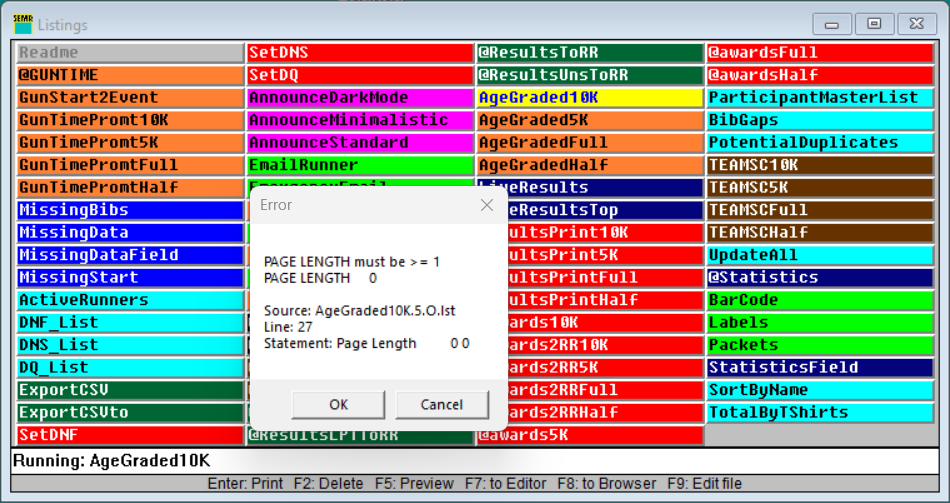
Common validation errors caught during execution:
| Command | Error message | Cause |
|---|---|---|
Page Length | "PAGE LENGTH must be >= 1" | Value is 0 or negative |
Records Per Page | "Records/Page must be > 0" | Value is 0 or negative |
Times/Wave | "TIMES/WAVE must be >= 1" | Value is 0 or negative |
Press OK to skip the bad command and continue processing the rest of the file. Press Cancel to abort the entire listing run.
RunScore's separate Runtime Validator catches other listing-authoring mistakes the same way — e.g., an unknown command, or a command missing its required argument entirely (leaving it out altogether, not just supplying a bad value). See the Runtime Validator's Event Codes table, code 103003.
Server vs. client differences
| Feature | RSServer | RSClient |
|---|---|---|
| File source | Reads *.LST from the race folder | Fetches the file list from the server |
| Run listing | Executes locally | Sends to the server for execution |
| Delete file (F2) | Yes (confirmation dialog) | Blocked ("RunScore client cannot delete files") |
| Rename file | Yes | Not available in context menu |
| Incremental run | Yes | Not available in context menu |
| Set Color | 11 colors | Not available in context menu |
| Set Priority | None + 1–9 | Not available in context menu |
| Ctrl+X (toggle gray) | Yes | Yes |
| Auto Run | Yes (with blink indicator) | Not available |
| Validation errors | Shown as modal dialog | Relayed from server |
Quick reference
| Key | Action |
|---|---|
| Enter | Run selected listing (print) |
| F1 | Open help |
| F2 | Delete file (server only) |
| F5 | Preview on screen |
| F7 | Output to editor |
| F8 | Output to browser |
| F9 | Edit the listing file |
| Ctrl+X | Toggle Gray (Inactive) on/off |
| Up / Down | Previous / next file |
| Left / Right | Previous / next column |
| Home | Jump to first file |
| Esc | Close the Listings window |
| A–Z, 0–9, @ | Jump to next file starting with that character |
| Click | Select file |
| Ctrl+Click | Multi-select (toggle) |
| Shift+Click | Range select |
| Double-click | Run selected listing |
| Right-click | Open context menu |
- Listings & Awards — overview of listing files, macros, and awards
- Programming Primer — learn to write your own listing files
- Commands Reference — full listing-command reference
- Auto Run File / Auto Run Seconds — schedule unattended listing runs
- Publish Live Results — send a listing file's results online to Race Roster during the race (see also Publish Unstructured Results for plain-text awards and standings)