Publish XC Results to TFRRS
Use this workflow to build JSON for a TFRRS-XC meet and upload it after scoring. You can preview the payload in the editor before posting.
DirectAthletics account setup (director sign-on, meet creation) is described on the TFRRS director info page — obtain credentials there before using RunScore.
Before you start
- Open the race you are scoring (start from a TFRRS sample race or your own copy).
- Set the online system: Tools → Online system → TFRRS.
- Log in: Online → TFRRS → Login (RunScore stores the session for posting).
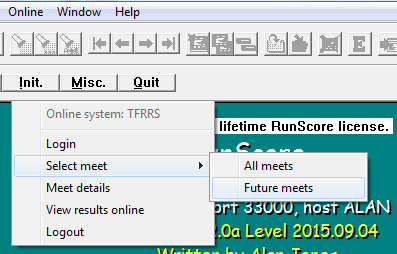
- Select the TFRRS meet: Online → TFRRS → Select meet → All meets, or Future meets to limit the list to upcoming meets plus any meet from the past seven days (sorted by date).
After you pick a meet, RunScore confirms the selection and shows meet_id:
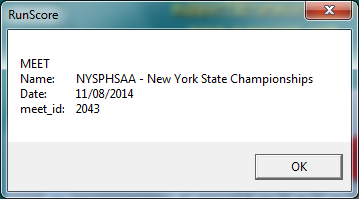
RunScore writes the selected meet to TFRRSMeet.txt in the race folder. You do not type meet_id into the listing — RunScore adds meet_id to the JSON from that file when the listing runs.
Enter / Edit fields
TFRRS listings expect standard collegiate fields in your database, including:
| Field | Role |
|---|---|
| TFRRSID | DirectAthletics athlete ID (tfrrs_id in JSON) |
| first name / last name | Athlete name (rename in the listing if your database uses different field names) |
| school | Team name (team in JSON) |
| Year | Class year (year in JSON) |
| sex | Gender (gender in JSON) |
| NO. | Bib (bib in JSON) |
| flag | DQ, DNF, or DNS — athletes with a flag stay at the bottom with no place or time but retain the flag text |
Include flag in results output so non-finishers appear correctly on TFRRS.

Team codes (optional)
Sample races can build a CODE field from school in entries.ini (three to five characters). If two schools could share the same code (for example "Western New Mexico" and "Western State"), score teams on school (Team Place school in the macro), not on CODE, and omit team_code from the listing unless you need it.
Event distances (splits)
For each split event in Tools → Miscellaneous → Edit list of Events, set Distance (miles, km, or meters). RunScore sends split-point distance and metric flags from those settings when building JSON.
Listing structure
The usual entry point is @TFRRSComplete.lst in the TFRRS sample races. It includes:
TFRRSHeader.rsm— meet-level JSON (name, dates, venue, host, officials).- One or more
TFRRSResults.rsmlines — one JSON race object each (men's, women's, varsity, JV, etc.).
Meet header (TFRRSHeader.rsm)
Use a Header block with name:value lines. A colon with nothing after it means the field is optional:
No Page Numbers
No Total
No Column Headers
Header
meet_name:Hamilton Invitational
start_date:2015-09-05
end_date:2015-09-05
meet_venue:Hamilton College Cross-Country Course
city:Clinton
state:NY
zip:13323
host:Hamilton College
director:John Smith
timer:Leone Timing
.End Of Header
Per-race macro (TFRRSResults.rsm)
@TFRRSComplete.lst passes seven parameters into each TFRRSResults.rsm call:
| Parameter | Meaning |
|---|---|
%1 | race_number — unique integer per race in the meet |
%2 | race_name — display name (for example Hamilton Mens 6K) |
%3 | race_gender — M or F |
%4 | race_distance — numeric distance (for example 6000 for 6K meters, or 3.1 for miles when not metric) |
%5 | metric — 1 if distance is metric, 0 if not |
%6 | score_by_division — 1 to score divisions separately, 0 otherwise |
%7 | Event list or event name — .include target (for example eventlstm, MEN, or a finish event) |
Example driver listing:
TFRRSHeader.rsm
TFRRSResults.rsm 1 "Hamilton Mens 6K"   M 6000 1 0 eventlstm
TFRRSResults.rsm 2 "Hamilton Womens 4K" F 4000 1 0 eventlstw
Inside TFRRSResults.rsm, a nested Header block maps %1–%6 to race_number, race_name, race_gender, race_distance, metric, and score_by_division. Optional race lines (weather, course conditions, start time) use the same name:value pattern.
Required athlete/team mapping uses Field Header names that become JSON keys — for example tfrrs_id, first_name, last_name, gender, year, team, bib, plus Dq Field flag. Team scoring uses Team Tie Breaker NCAA, Team Place school, and Team Total.
Use Header Case none so keys such as race_distance are not converted to title case.
Splits in the listing
TFRRS expects, for each athlete, a finish time and optional splits with both lap_time and total_time per split. In the listing, alternate Event lines: even-indexed split events contribute lap time, odd-indexed ones contribute cumulative time. The first split uses the same time for lap and total.
Example pattern (from TFRRSRace women's macro):
* First lap — split and total are the same
Event               WOMEN2K
Event               WOMEN2K
* Second lap — subtract previous cumulative for lap time
Event               WOMEN4K
Minus               WOMEN2K
Event               WOMEN4K
* Finish
Event               %7
Name each split for TFRRS by setting the split event's display name in Edit list of Events (RunScore sends it as the split name in JSON).
Preview JSON (Editor)
- Open the Listings window and select
@TFRRSComplete(or your TFRRS listing). - Right-click → TFRRS Results to. → Editor.

The screenshot shows an older submenu title (Export Results to.). Current RunScore labels this TFRRS Results to. when Tools → Online system is TFRRS.
RunScore opens a large JSON document in the text editor. Key properties:
- Top-level meet fields from
TFRRSHeader.rsmplusmeet_idfrom the selected TFRRS meet. racesarray — one object perTFRRSResults.rsminvocation, each withresults(andsplit_pointswhen splits are configured).
JSON key order in the editor may differ from the live site; that is normal.
Example result object shape:
{
  "athlete_place": 1,
  "athlete_score": 1,
  "bib": 460,
  "first_name": "John",
  "gender": "M",
  "last_name": "Allard",
  "team": "Clark (Mass.)",
  "team_place": 1,
  "team_score": 18,
  "tfrrs_id": "288231JOH*ALLA",
  "time": "991.8",
  "year": "SR"
}
If meet_id is missing, select the meet under Online → TFRRS → Select meet and run the listing again.
Upload to TFRRS (Online)
- Online → TFRRS → Login if you are not already signed in.
- Right-click the same listing → TFRRS Results to. → Online.
RunScore POSTs to TFRRS and shows a response dialog (counts such as athletes, results, matched_athletes, and meet_hnd). RunScore also saves the raw response in tfrrs_response.txt in the race folder.
On the Test site, the response includes staging_id instead of meet_hnd:

External Report To TFRRS listing commandThe External Report To listing command supports Race Roster, RunSignUp, ChronoTrack Live, and related targets — not TFRRS. TFRRS uploads use TFRRS Results to. → Online (or preview with Editor) while Tools → Online system is set to TFRRS.
View results online
After a successful upload, choose Online → TFRRS → View results online:

This screenshot shows older item names (Select event, Event details). Current builds use Select meet and Meet details.
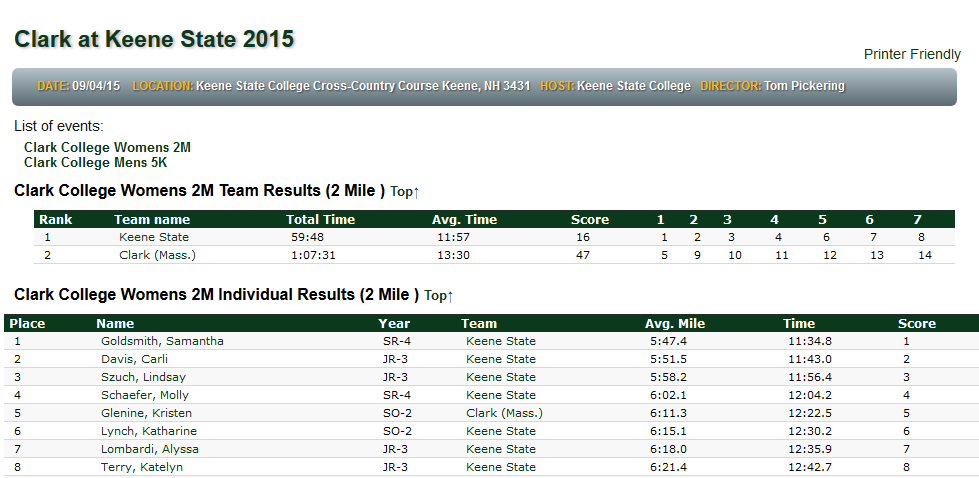
RunScore reads meet_hnd from tfrrs_response.txt and opens the TFRRS results page in your browser. Published results look similar to this example:
If Test site is enabled in preferences, RunScore uses the staging URL and staging_id from the response instead.
Troubleshooting
| Symptom | What to check |
|---|---|
| "Before sending a report to the web you must first sign in" | Online → TFRRS → Login |
Missing meet_id in JSON | Online → TFRRS → Select meet and confirm TFRRSMeet.txt |
| Wrong or empty splits | Event Distance on each split event; alternating Event/Minus pattern in the listing |
| Duplicate team_code on TFRRS | Score on school; drop team_code from the listing |
| Upload succeeds but browser link fails | Upload again so tfrrs_response.txt contains meet_hnd |
Related
- TFRRS Introduction — sample race folders
- Listings Window — TFRRS Results to. submenu
- Enter / Edit Results — event editor and Distance