Race-day checklist
Steps to score a race in RunScore, in order. Finish-area layout — mats, chutes, and Events.xml — is in Finish area.
In RunScore, an event (a scoring event) is a named container in Events.xml — start, split, finish, backup. In Race Roster, an event is the online race you select under Online → Select race. This page says scoring event for RunScore and Race Roster event for the online one.
Days before the race
-
Open the race you will score. Copy last year's race folder, or start from a sample under
C:\RunScore\SampleRaces. File → Save Race As is an alternative: open the source race first (File → Open Race), then save. It copies only top-level files — not subfolders such as the 5K sample'sdata\— and switches RunScore to the copy. Copy any needed subfolders by hand. See Race Configuration. -
Confirm RunScore is registered (Help → Register RunScore). An unregistered RSServer cannot start external timers.
-
Clear leftover names if this folder still has last year's participants: Tools → Enter/Edit names → Erase ALL names. See Erase ALL names.
Whether this also erases last year's results depends on Results Management in Preferences. With Ask Every Time, click Yes to keep them. No is the default, so pressing Enter erases them.
RunScore closes the race when Erase ALL names finishes. Reopen it (File → Open Race) before the next step. Erasing names also resets download tracking, so the next roster download needs to be a full download.
-
Edit
entries.ini: race name, date, result IDs,[control]sections, and bib/chip lookup. Open it with Tools → Enter/Edit names → Edit entries.ini update file. See Entries.ini and Customizing your race. -
Check the scoring events: Tools → Miscellaneous → Edit list of Events (or Misc. → Edit list of Events). You need one scoring event per timing point, including each backup mat (see Physical setup). See Defining your scoring events.
-
Select this year's Race Roster event: Tools → Online system → RaceRoster, then Online → Login and Online → Select race. A copied race still points at the Race Roster event it was copied from.
-
Download the roster from Race Roster. See Participant Downloads. After the first full download, use incremental downloads as registrations continue.
-
Optionally set Minutes for Auto Save in Preferences (a clean install defaults to 0, which is off).
-
Test the live-results upload with simulated results.
Simulate a race replaces resultsSimulate replaces every bib number and time in the scoring event you choose.
Test in the race you will score. If you tested in a copied folder, a sample clone, or a Save Race As copy, reopen the real race afterward — Save Race As switches RunScore to the copy.
- Tools → Miscellaneous → Simulate a race (or Misc. → Simulate race). Pick a scoring event. Set Number of runners, Distance of race in km, and Time-of-day offset. See Simulate a race.
- Run the live-results listing from the Listings window. See Publish Live Results.
- Remove the test results in both places:
- In RunScore, run Initialize Results and click Clear All.
- On Race Roster, delete the simulated results from the results page.
Physical setup
Lay the mats and map each timing point to a scoring event. See Finish area.
| Mat | Placement | Scoring event | Type | Patch misses into |
|---|---|---|---|---|
| Primary start | Start line | ChipStart | Start | — |
| Backup start | 2–3 m after the start | e.g. StartBackup | Start | ChipStart |
| Primary finish | Finish line | Finish | Finish | — |
| Backup finish | ~15 m after the finish | e.g. FinishBackup | Start | Finish |
Give each backup mat its own scoring event. Combine Events takes no arguments: it merges every non-select, non-start scoring event that has a finish order. A Finish- or Default-type backup is merged whenever any listing uses Combine Events. Start-type takes a timer lane and is skipped by Combine Events. Do not use Select for a chip-fed backup — select events are skipped when assigning timer lanes.
Finish. Place a backup mat about 15 m behind the finish to catch missed reads. Copy missed bibs from the backup Results Screen into the primary Finish scoring event.
High-volume starts. Dense corrals miss passive UHF reads. Put a backup start mat 2–3 m after the primary start. Map it to its own Start-type scoring event (for example StartBackup) — not ChipStart. Patch misses into ChipStart.
Glue dual tags vertically or diagonally on the bib. If the two tags have different IDs, see Multiple chip fields.
Race morning
-
Download last-minute registrations: Online → Download registrations → Download all subevents (or Download selected subevents), then click Incremental download. Any Race Roster download closes open Results windows, so do this before you open Results. See Incremental download.
-
Initialize Results after mat testing and before the gun. Tools → Initialize → Results, or Init. → Initialize Results. Run this every time.
Initialize Results permanently erases resultsIt erases the bib numbers and times in the scoring event you choose, or in every scoring event with Clear All. It runs on the server even when you start it from RSClient.
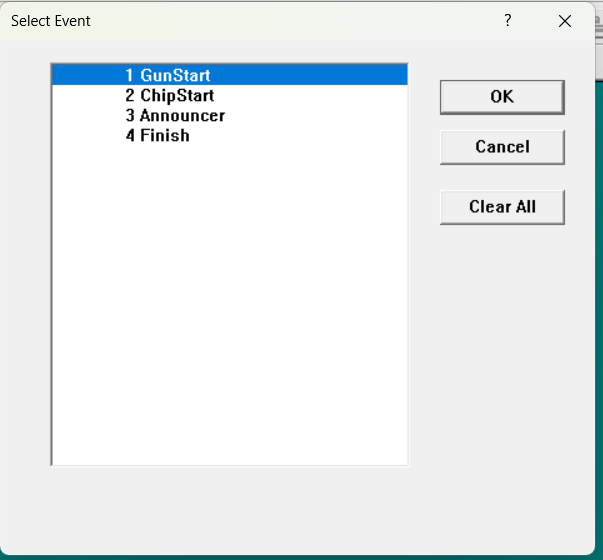
- With more than one scoring event, Select Event opens with the first event highlighted. Click Clear All. OK clears only the highlighted event (for example
GunStartin the 5K sample). With one scoring event, this window does not appear. - Click Yes in the confirm box. No is the default, so Enter cancels.
With Auto enable external timer on start-up on, timers record from the moment the race opens. Initialize Results also clears those test reads.
- With more than one scoring event, Select Event opens with the first event highlighted. Click Clear All. OK clears only the highlighted event (for example
-
Start your timing systems. Tools → Initialize → External Timer, or Init. → Initialize External Timers.... Configure one slot for each timing device. See Initialize External Timers. If you use MYLAPS Cloud Timing, connect through Tools → Cloud System → MyLaps instead. See MYLAPS Cloud Timing.
-
Chip options: keep To results selected so chip reads go into results. See To results.
-
Start backup timing if you still use a push-button or internal timer. Chip systems are the usual race clock; these two are the older backup path and share one race clock.
Shared race clockPush Button and Start Internal Timer share one race clock. Start on either dialog restarts it for both. Stop on either dialog clears it for both.
- Tools → Initialize → Push Button starts a push-button timer on a COM port.
- Tools → Initialize → Start Internal Timer (or Init. → Start Internal Timer...). The dialog title is Push Button. Leave the time at 00:00:00 and click Start at the gun. If you start late, enter the elapsed race time instead. Then open the Results Screen for your select event and press Alt+S once. Select timing on appears. For each finisher, type the bib and press Enter as they cross. See Internal timer.
During and after the race
- Patch missed reads from each backup mat into its primary scoring event.
- Check the leaders and award bibs against the assistant's notes.
- On the Race Roster results page, check Public when the results are final.