Enter/Edit Results
The Enter/Edit Results screen is where you record finishers' bib numbers and times during a race. You can enter data manually, receive it from an external timer, or load it from chip/tag systems.
Open this screen from the Results button on the Master Menu, then select the event. This page picks up where Race Results leaves off — the basics of opening the screen and capturing times are covered there.
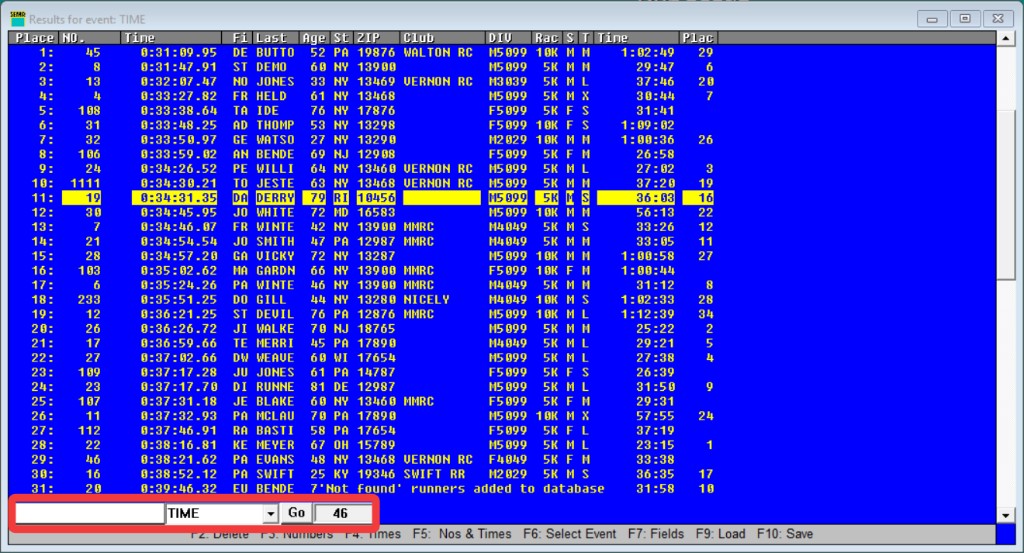
Before entering results for a new race, initialize the results from Tools → Initialize → Results or Init. → Initialize Results on the Master Menu.
Common tasks
- Record finishers quickly → Entering bib numbers
- Fix a misread bib or wrong time → Editing in place, Deleting entries
- Correct a timing offset →
@ADD/@SUB - Reconcile with select times → Semi-automatic alignment
- Protect results mid-race → Auto-save
Entry modes
The screen operates in one of three modes, determining what the command area accepts:
| Mode | Activate with | What you enter |
|---|---|---|
| Bib Numbers | F3 or click the numbers column | Successive bib numbers |
| Times | F4 or click the times column | Finish times |
| Numbers and Times | F5 or click outside both columns | A bib number followed by its time |
The default mode on open is Bib Numbers. Override this per-race with the EDIT RESULTS command in entries.ini (accepts BIBS, TIMES, BOTH, NONE, or NEITHER). Setting NEITHER locks the screen to read-only — all editing, inserting, and mode switching are disabled.
Entering bib numbers
Press F3 to switch to bib-number mode. Type each finisher's bib and press Enter.
If a bib number is not found in the database, RunScore displays a dialog asking whether to add it. Answering Yes adds the entry and opens Enter/Edit Names for that record.
To add unknown bibs automatically without the dialog, toggle Alt+N (Not Found Added).
Entering times
Press F4 to switch to times mode. Separate hours, minutes, and seconds with spaces or colons.
RunScore carries forward unchanged higher-order values. If the previous time was 1:30:55.02:
| You type | RunScore records |
|---|---|
1 30 55.02 | 1:30:55.02 |
31 9.91 | 1:31:09.91 |
33.47 | 1:31:33.47 |
| (just Enter) | 1:31:33.47 (same as above) |
32 0 | 1:32:00.00 |
Colons work identically: 1:02:03 is the same as 1 2 3.
When working with whole seconds, round up to the next second per USATF Road Running rules.
Entering both (F5)
Press F5 to enter a bib number followed by the time on the same line. The bib and time are separated by a space.
Editing in place
Left-click a bib or time to position the highlight (the bright bar indicating the active entry), then right-click to open the context menu:
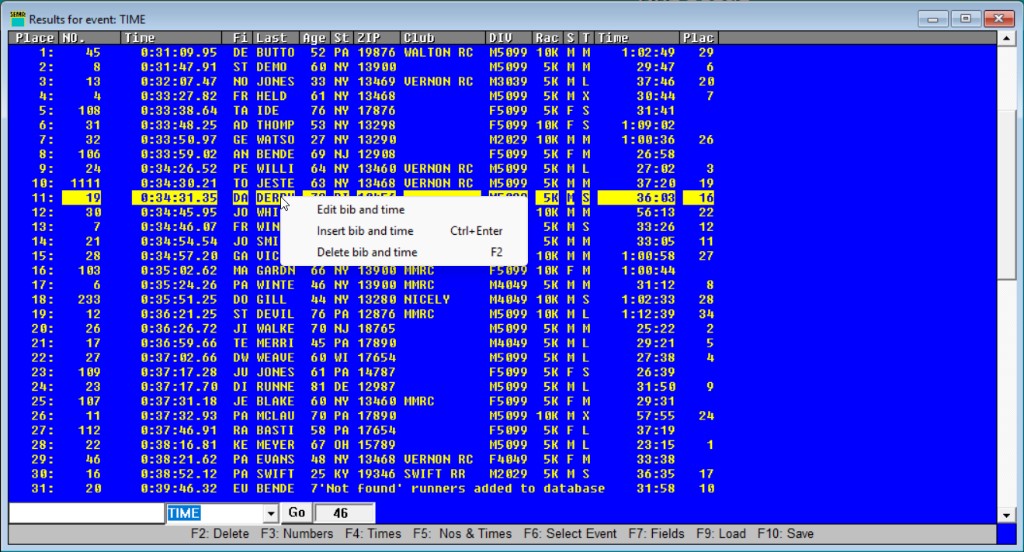
- Edit — modify the selected value in place; press Enter to confirm or Esc to cancel.
- Insert — insert a new entry above the highlighted position; keep pressing Enter to add more.
- Delete — remove the highlighted entry.
- Copy / Paste — copy or paste a bib+time pair.
In edit mode, use Up/Down arrows to move between adjacent entries without leaving the editor.
Navigating the results list
| Key | Action |
|---|---|
| Up / Down | Move highlight one position |
| PgUp / PgDn | Scroll one page |
| Ctrl+Home | Jump to first finisher |
| Ctrl+End | Jump to last finisher |
| Mouse wheel | Scroll the list |
| Scrollbar | Drag to position |
Searching
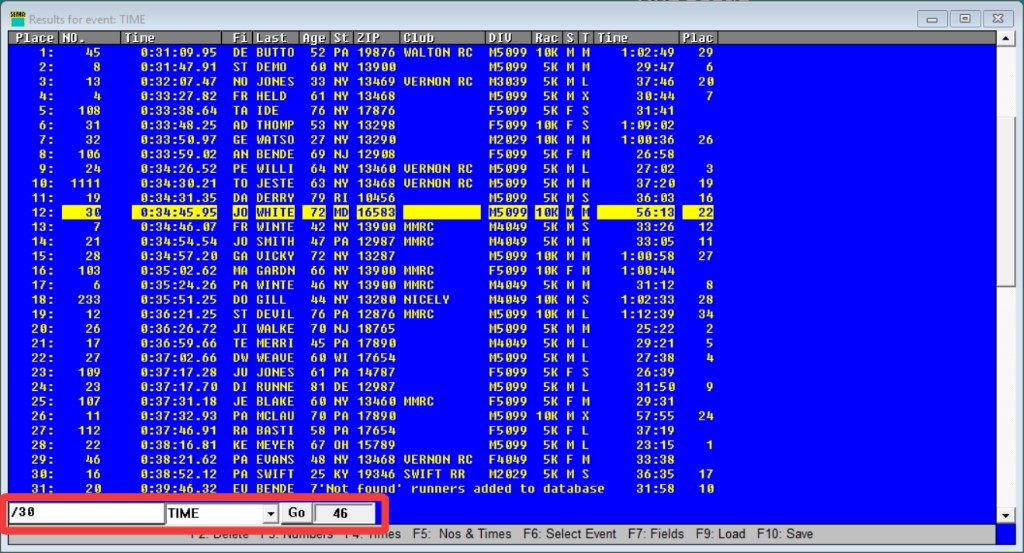
Type a prefix in the command area and press Enter:
| Prefix | Action |
|---|---|
/123 | Find bib 123 in results |
///smith | Search the 3rd configured search field for "smith" (slash count selects which field — / = 1st, // = 2nd, /// = 3rd, etc.) |
#34 | Jump to finish place 34 |
Deleting entries
| Key | Action |
|---|---|
| F2 | Delete the highlighted entry (prompts for confirmation unless armed) |
| Ctrl+F2 | Toggle armed (pre-confirmed) deletion — skips the confirmation prompt on each F2 press |
| Alt+F2 | Delete from highlighted entry to end |
| Ctrl+Z | Undo the last deletion (one level) |
What gets deleted depends on the current mode:
| Mode | F2 removes |
|---|---|
| Bib Numbers (F3) | Bib only — times stay, subsequent bibs shift up |
| Times (F4) | Time only — bibs stay, subsequent times shift up |
| Both (F5) | Bib and time together |
Moving entries
| Key | Action |
|---|---|
| Alt+Up | Swap highlighted entry with the one above |
| Alt+Down | Swap highlighted entry with the one below |
Sorting
On-screen sort (Alt+T / Alt+B)
| Key | Action |
|---|---|
| Alt+T | Sort by time (ascending) |
| Alt+B | Sort by bib number (ascending) |
Both require the same number of bibs and times to proceed.
Finish time vs. net time in listings
Alt+T sorts the results list you're editing. Printed reports are sorted separately, by the listing file: rows follow the time of the last sorted Event, and every Event is sorted unless you say otherwise.
| To print rows in… | Do this |
|---|---|
| Gun (finish) time order | Add Sort after the gun-time Event, or No Sort after the net-time Event. |
| Net time order | Nothing, if the net-time Event comes last: it already sets the order. |
Special commands (@)
Type these in the command area (prefix with @) and press Enter. Time T can be in seconds or H:MM:SS.01 format. Place numbers are 1-based.
Time adjustment
| Command | Action |
|---|---|
@ADD T | Add time T to all times |
@ADD T n1 | Add time T from place n1 onward |
@ADD T n1 n2 | Add time T to times between places n1 and n2 |
@SUB T | Subtract time T from all times |
@SUB T n1 | Subtract time T from place n1 onward |
@SUB T n1 n2 | Subtract time T from times between places n1 and n2 |
@TIME T | Set all times to T |
@TIME T n1 | Set times from place n1 onward to T |
@TIME T n1 n2 | Set times from place n1 to n2 to T |
Reorder and delete
| Command | Action |
|---|---|
@DEL n | Delete finish place n |
@DEL n1 n2 | Delete places n1 through n2 (respects current mode) |
@REV n1 n2 | Reverse bib order between places n1 and n2 |
@MOVE n1 n2 n3 | Move bibs/times from places n1–n2 to new location n3 |
@SWAP n1 n2 | Swap bibs in places n1 and n2 |
@MOVE and @MOV are interchangeable (only the first 4 characters are matched).
Equivalent time formats (all produce the same value):
0:01:05.67
1:05.67
65.67
Saving and loading
Quick reference
| Key | Action |
|---|---|
| F10 | Save results to disk (current event, or all events if "Save All" is enabled in Preferences) |
| F9 | Reload results from last saved file — use to recover after a mistake |
| Esc | Close the results window; changes remain in memory |
Pressing Esc stores changes in memory only. Data is written to disk on the next auto-save cycle, on the next F10, or when you exit RunScore. Always return to the main panel before powering off.
Save vs. Export
RunScore stores results in two different formats — do not confuse them:
| Operation | Format | Purpose |
|---|---|---|
| Save (F10, File > Save) | Binary (.fn2 for bibs, .tm4 for times) | Internal format loaded automatically when you open a race. Use during a race to protect your data. |
| Export (File > Export Numbers and Times) | Plain text (.txt, .fna) | Human-readable format for sharing with other programs or other RunScore users. |
File menu
| Menu item | Action |
|---|---|
| File > Save Numbers and Times > Both | Same as F10 |
| File > Save Numbers and Times > Numbers | Save bibs only |
| File > Save Numbers and Times > Times | Save times only |
| File > Load Numbers and Times > Both | Same as F9 |
| File > Load Numbers and Times > Numbers | Reload bibs only |
| File > Load Numbers and Times > Times | Reload times only |
Auto-save
When enabled in Preferences, RunScore automatically saves all results (and optionally the database) at the configured interval. The interval is set in minutes; a value of 0 disables auto-save.
Each auto-save cycle:
- Writes binary results for all events to the race folder.
- Writes ASCII bib files if "Save ASCII Bibs" is enabled.
- Backs up the database (
.dta+.frm) if a backup directory is configured.
Export results
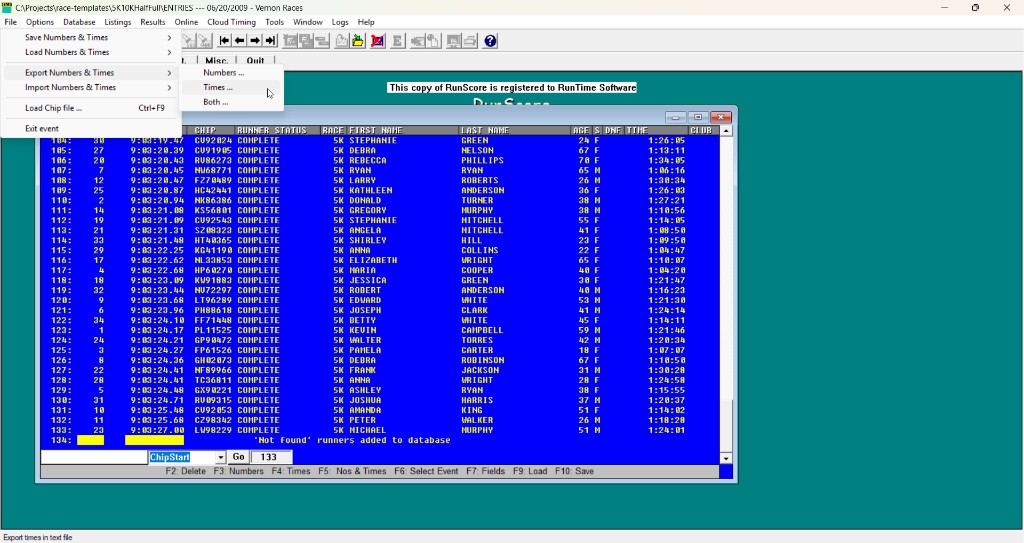
Export writes finish data to a human-readable text file so you can share it with another RunScore user or open it in a spreadsheet.
How to export
- Open the results screen for the event you want to export.
- Go to File > Export Numbers and Times and choose what to export:
| Menu item | Output format |
|---|---|
| Numbers | One bib number per line (.fna or .txt). Bib values are space-padded to the database field width. |
| Times | One time per line in HH:MM:SS.01 format (.txt) |
| Both | Bib (fixed-width, space-padded) + space + tab + time per line (.txt) |
- In the Save As dialog, choose a location and filename.
Alt+F10 saves the current event's results in RunScore's internal binary format — this is the binary save, not the text export above.
Export file examples
Numbers only (.fna):
45
2
35
645
12
Times only (.txt):
1:23:45.04
1:24:12.33
1:25:00.00
Both (.txt — bib field is space-padded to the database field width, followed by a space and tab before the time):
   45 	1:23:45.04
    2 	1:24:12.33
   35 	1:25:00.00
Exporting as CSV, JSON, or to Race Roster
The File > Export Numbers and Times menu above exports raw bibs and times. For richer exports — CSV with names, ages, divisions, and places, or JSON for online results platforms — use a listing file instead:
- CSV — Use the
Output Format CSVcommand in a listing file. The race templates include ready-made examples (ExportCSV.3.Q.lst). Double-click the file in the Listings window to generate a.csvin the race folder. - JSON — Use
Output Format JSONfor integrations such as RunSignUp Custom Reports or ChronoTrack Live. - Race Roster — Use
External Report To RaceRosterto push results directly to Race Roster. See Posting Online Results for a complete example listing file, and Race Roster for the full integration guide. - TFRRS — Use TFRRS Results to. → Online on a
@TFRRSCompletelisting while Tools → Online system is TFRRS. See Publish XC Results. Set event Distance on split events (table below).
Import results
Import reads finish data from a text file into the current event. Use this when you receive results from another RunScore user or external system.
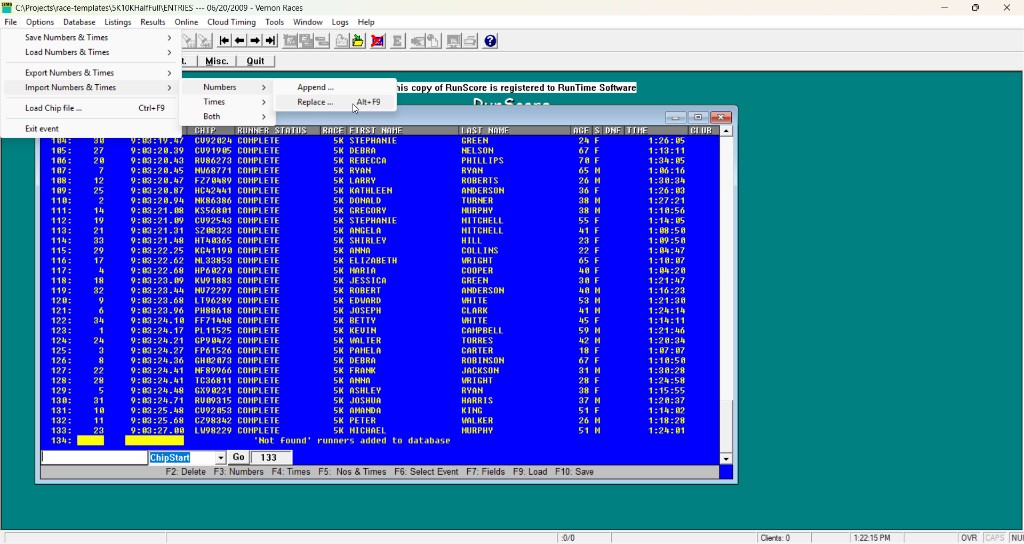
How to import
- Open the results screen for the target event.
- Go to File > Import Numbers and Times and choose what to import:
| Menu item | Shortcut | What it does |
|---|---|---|
| Numbers > Append | — | Add bibs after existing bibs |
| Numbers > Replace | Alt+F9 | Clear all bibs, then load from file |
| Times > Append | — | Add times after existing times |
| Times > Replace | — | Clear all times, then load from file |
| Both > Append | — | Add bib+time pairs after existing data. Requires the same number of bibs and times already present; otherwise RunScore shows an error. |
| Both > Replace | — | Clear all data, then load from file |
- In the Open dialog, select the file to import.
Ctrl+F9 loads a chip file — this is a separate operation from text import.
Understanding the internal format
RunScore stores results internally as binary integers:
- Finish order is stored as 2-byte integers in
.fn2files, each pointing to a record in the database (0-indexed). - Times are stored as 4-byte integers in
.tm4files, in hundredths of a second.
These binary files are loaded automatically when you open a race. If you bring a .fn2 file from a different race with a different database, the record pointers will not match — the results will be wrong. Import solves this by using human-readable bib numbers that RunScore looks up in your database.
Accepted time formats
When importing times, RunScore accepts any of these formats:
1:23:45.04
47:14
47:13.99
In a times-only file, you can separate hours, minutes, and seconds with spaces or colons. In a Both file, write the time without spaces (for example 1:13:45.03), because the space separates the bib from the time.
Importing both numbers and times
The file should have one entry per line: bib number, then whitespace (space or tab), then the time:
23 1:13:45.03
5 1:13:46.98
1 1:13:48.65
4 1:13:51.04
Time-range filtering
When importing times, RunScore discards any time that falls outside the event's configured time window (if one is set in the Event Editor). This prevents stale or out-of-range data from entering your results.
Options menu toggles
These menu items appear under Options only while a Results window is active.
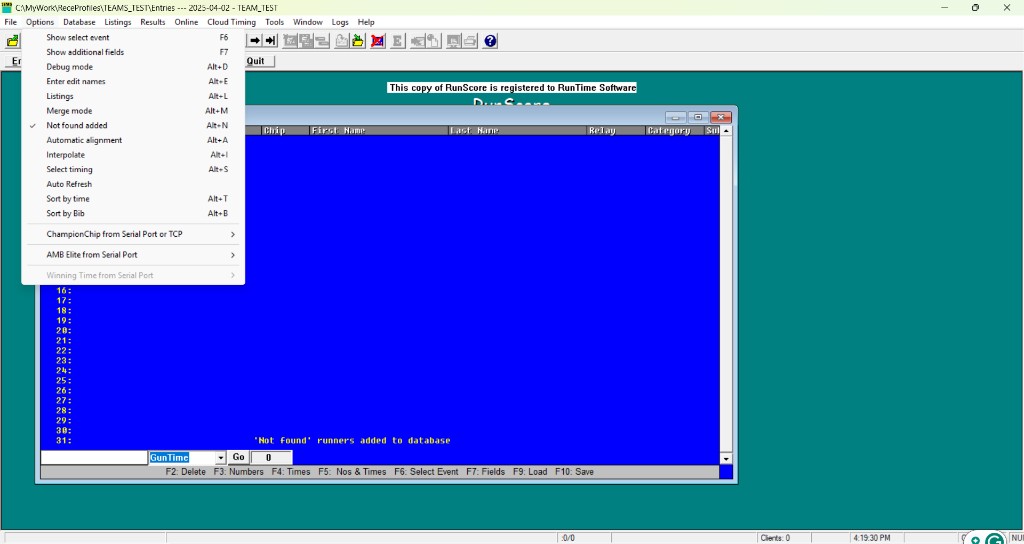
| Menu item | Key | Description |
|---|---|---|
| Show select event | F6 | Display select-event times beside main results |
| Show additional fields | F7 | Show database fields (name, age, etc.) beside bibs |
| Debug mode | Alt+D | Display raw data from external timer (serial debug window) |
| Merge mode | Alt+M | Check for duplicate bibs across ALL events on entry |
| Not found added | Alt+N | Auto-add unknown bibs to database (with notification) |
| Automatic alignment | Alt+A | Semi-automatic select-time alignment (see below) |
| Interpolate | Alt+I | Interpolate times from select event |
| Select Timing | Alt+S | Enter select-timing mode (bib + time via internal timer) |
| Auto refresh | Alt+X | Refresh screen every second (for external timer data) |
| Sort by time | Alt+T | Sort results by time |
| Sort by bib | Alt+B | Sort results by bib number |
Do not enable Auto Refresh while entering results from the keyboard — the periodic screen refresh causes the window to lose input focus, resulting in missed keystrokes or bib numbers entered into the wrong field.
Defining events
Create and configure events in Tools → Miscellaneous → Edit list of Events (or Misc. → Edit list of Events on the Master Menu). RunScore stores the list in the race folder as Events.xml; each event on the Results screen is one entry in that file.
If a race has no Events.xml, RunScore reads the older EVENTS file instead. To convert it, open Edit list of Events and click OK: RunScore writes Events.xml and ignores EVENTS from then on. Changes made to either file outside RunScore take effect only after you close and reopen the race.
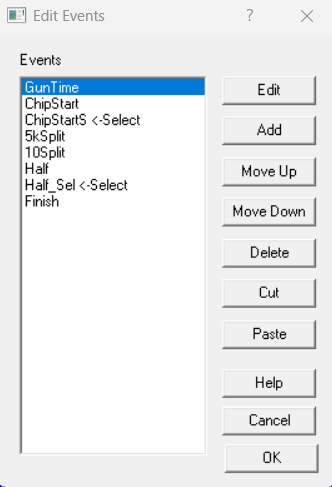
Use the Add, Delete, Move Up/Down, Cut, and Paste buttons to manage the event list. Double-click an event (or select it and click Edit) to open the Event Editor:
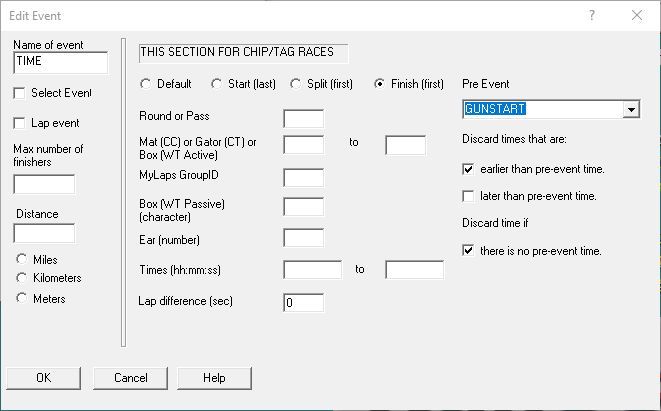
Event Editor fields
| Field | Purpose |
|---|---|
| Name of event | Must be unique. RunScore also uses it to name the results files (<name>.FN2 / .TM4). |
| Select Event | Check to designate this as a select-time event |
| Lap event | For races with multiple laps of equal distance |
| Max number of finishers | Override automatic sizing (e.g. for lap races with more times than entries) |
| Distance / Miles/Km/Meters | Required for TFRRS upload only |
Chip/tag race settings (right side)
| Setting | Purpose |
|---|---|
| Default / Start / Split / Finish | Controls which chip read to use — Finish uses the first time; Start uses the last |
| Round or Pass | Assigns successive reads to different events (e.g. Round 1 = Swim, Round 2 = Bike) |
| Mat (CC) or Gator (CT) or Box (WT Active) … to … | Sends a read to this event when the timer's mat or reader number is in this range (ChampionChip mats, Winning Time Active boxes). ChronoTrack ignores this setting: ChronoTrack reads go to the event whose name matches the location, or to the event mapped in events_mapping.ini. |
| Box (WT Passive) (character) | Winning Time Passive box letter. Can't be used together with a Mat range; RunScore keeps the range and clears the box. |
| Ear (number) | ChampionChip antenna (ear) number for routing |
| MyLaps GroupID | Route by BibTag group |
| Times (hh:mm:ss) … to … | Time-limit filter — reject reads outside this window (blank = no filter; use 0 or 0:00:00 as the lower bound to drop negative times) |
| Lap difference (sec) | Minimum seconds between reads to count as a new lap. Blank or 0 uses LAP DIFFERENCE from entries.ini (default 10). |
Pre Event filtering
Pick a Pre Event from the dropdown, then choose which reads to discard:
| Checkbox | Effect |
|---|---|
| Discard times that are: earlier than pre-event time | Reject reads before the participant's time in the pre-event |
| Discard times that are: later than pre-event time | Reject reads after the pre-event time (for example, with KIDS_5K as the Pre Event for the adult FINISH event, kids who cross the finish mat after their own race aren't recorded) |
| Discard time if there is no pre-event time | Reject reads when the participant has no matching time in the pre-event |
Each event checks only its own Pre Event. Chained Pre Events still work when a runner has a time at every step. If a runner has no time in the Pre Event, RunScore doesn't look further back: it accepts the read, or discards it if Discard time if there is no pre-event time is checked.
- Don't make two events each other's Pre Event. With Discard time if there is no pre-event time checked, neither event can record a runner's first time.
- Don't check all three boxes. The event then accepts no reads.
SPILL events
A SPILL event collects a runner's extra passes beyond the last Round or Pass event.
- In Edit list of Events, select the last Round event and click Add.
- Give the new event a name starting with
SPILL(for exampleSPILL1). Case doesn't matter. - Click OK. RunScore checks Lap event for you, so the event can hold several extra passes per runner.
See also Laps to Rounds / Laps to Passes.
Switching events
| Method | Description |
|---|---|
| Alt+1 through Alt+9 (Alt+0 = event 10) | Jump directly to another event's results window |
| Event dropdown + Go button | Select an event from the combo box near the command area |
You can have multiple results windows open simultaneously for different events.
Other shortcuts
| Key | Action |
|---|---|
| F1 | Open help |
| Alt+E | Open Enter/Edit Names for the highlighted finisher |
| Alt+L | Open Listings |
| Ctrl+P | Print instant result for the highlighted finisher |
| Alt+C | Toggle continuous instant results (auto-print as bibs are entered) |
| Ctrl+Enter | Enter insert mode at the current position |
Select timing and alignment
Overview
Select times are a secondary set of times recorded for randomly chosen finishers. By comparing select times against the main time list, you can detect and correct errors caused by bandits or missed finishers.
Setup
- Create a select event in the Events list (check "Select event" in the Event Editor dialog).
- Enter select bib numbers and times in that event.
- Open the main event's results, press F6 to see select times side-by-side.
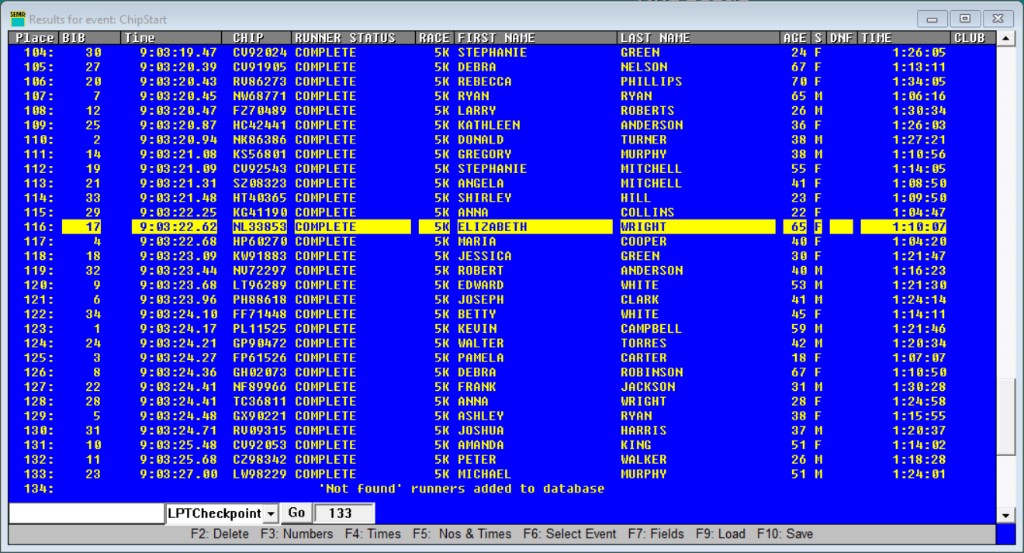
Before F6 — no select-time column:
After F6 — the "Sel. Time" column appears between Time and the database fields:
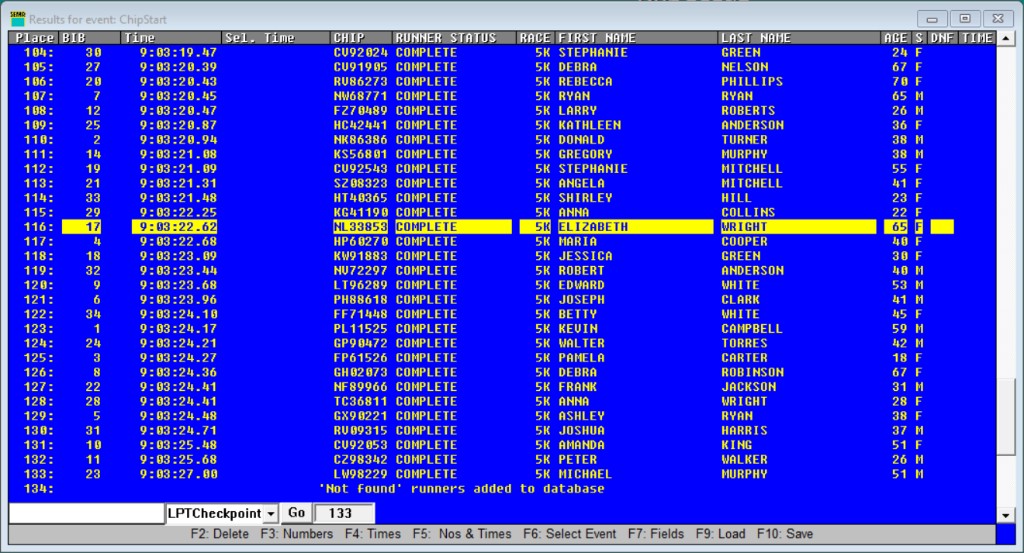
If no select event is configured for the current event, F6 has no visible effect. The column only appears when a matching select event exists in Events.xml.
Give every event a different name, including each select event. RunScore names an event's results files after it (for example MENA.FN2 and MENA.TM4), so two events with the same name overwrite each other's results.
RunScore pairs each main event with the first select event listed below it. External timers skip select events when numbering chutes, so chute 1 is the first main event, chute 2 the second, and so on.
One select event for all chutes (list it after every chute):
MENA
MENB
WOMEN
SELECT    (select event)
One select event per chute (list each directly below its chute):
MENA
MENAS     (select event for MENA)
MENB
MENBS     (select event for MENB)
Manual alignment
- Search for each select bib with
/123and compare its select time with its main time. - If they disagree, look between the last matching select time and this one for a missing or extra time.
- Press F4 (Times mode), then:
- Missing time: highlight the time just before the gap, type the time in the command area, and press Enter. RunScore inserts it after the highlighted time.
- Extra time: highlight it and press F2. In Times mode, F2 deletes only the time.
USATF rule: never give a finisher a time faster than they already earned. When inserting a missing time, place it no earlier than necessary; when removing an extra time, delete the copy that does not speed up a legitimate finisher.
Semi-automatic alignment (Alt+A)
Press F10 before running alignment. If you make an error, press F9 to reload.
- Press Alt+A from the results screen.
- RunScore compares select times to main times (within the configured maximum-difference tolerance — default 2 seconds, adjustable in Preferences → Maximum difference for selects (sec)).
- At each discrepancy, a dialog explains the proposed action (insert or delete a time) and asks you to confirm.
- Click Ok to accept, Skip to leave this discrepancy, or Cancel to stop.
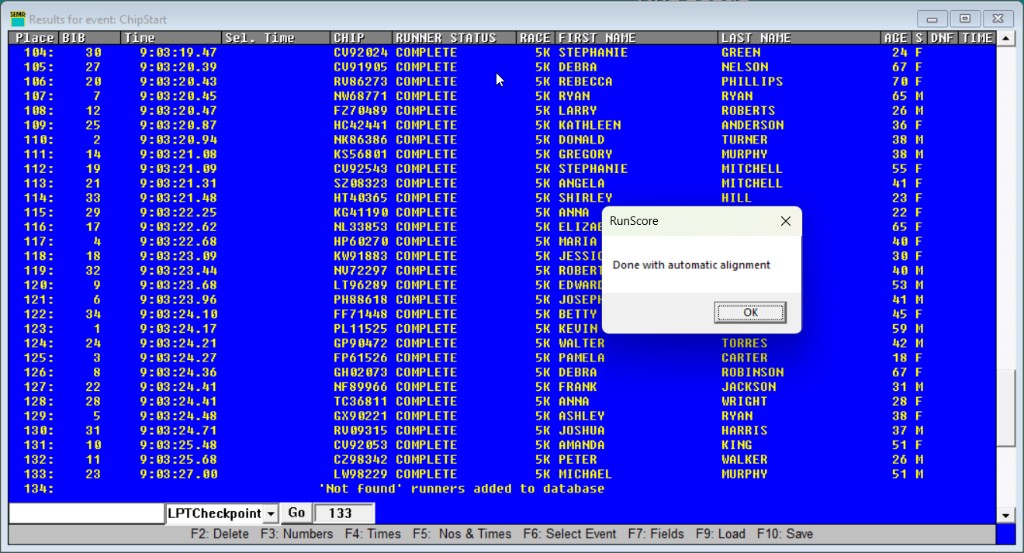
When all select times agree with the main times, RunScore confirms alignment is complete:
When extra times are detected (e.g., from bandits), you can:
- Okay — delete the extra times
- Insert bandits (I) — insert placeholder bib 0 entries to hold the times until resolved
- Skip (S) — leave this discrepancy and continue
If the prompt says something like "Okay to insert 95 times of 1:02:03 just past the highlighted time?", click Skip. Count 95 places down from the highlighted row and check that bib in the select event: a single wrong select bib or time usually causes this.
Interpolation (Alt+I)
Use interpolation only when primary and secondary timing systems have both failed. Requirements:
- All bibs in the select event must appear in the main event, in the same order.
- Select-event times must be in ascending order.
Interpolation fills in times between select-time anchor points proportionally.
Internal timer
The internal timer is used for select timing or Scroll Lock timestamping. Chip/RFID systems and external timers time the race — this is not a replacement.
Start it from Tools → Initialize → Start Internal Timer or Init. → Start Internal Timer… on the Master Menu. The dialog's title bar says "Push Button".
The Internal Timer and the Push Button timer share one clock, so starting either one resets the other.
| Use | What happens |
|---|---|
| Scroll Lock (Master Menu, timer running) | Appends the current elapsed time to the first event's results. No bib is associated. |
| Select timing (Alt+S) with the timer running | Type a bib, press Enter. RunScore attaches the clock time to that bib. Manual time entry is disabled while both select timing and the timer are active. |
Simulate a race
RunScore can generate synthetic results for testing listings, awards, and race-day workflows without live timing data.
Running a simulation
- Open Tools → Miscellaneous → Simulate a race (or Misc. → Simulate race from the Master Menu).
- Select the target event when prompted.
- In the Simulate dialog, set:
| Field | Default | Description |
|---|---|---|
| Number of runners | Count of entrants with a competition number | How many finishers to generate |
| Distance of race in km | 10 | Race distance — controls the spread of generated times |
| Time-of-day offset | 00:00:00 | Starting time-of-day offset for generated times |
- Press OK — RunScore populates the event with random but plausible finish times.
Undo an accidental simulation
Open the Results Screen for that event and press F9 (File → Load Numbers & Times → Both). Answer Yes to Reload numbers and times? RunScore reloads the last saved results.
This works only until the next save: pressing F10, an auto-save (Minutes for Auto Save in Preferences), or closing the race.
Multi-event (triathlon) simulation
Simulate each leg separately with adjusted distances to produce realistic cumulative times. For a 1 km swim / 30 km bike / 10 km run:
| Event | Actual distance | Distance to enter |
|---|---|---|
| SWIM | 1 km | 5 km |
| BIKE | 30 km | 20 km |
| RUN | 10 km | 30 km |
Because each event is simulated independently, some split times may be inconsistent (e.g. a runner finishing the RUN before the BIKE). This is expected and harmless for testing purposes.
The dialog cannot simulate multiple chutes — the same bib numbers would appear in different chutes, causing conflicts in listings. Use the Simulate Number and Simulate Distance commands in a listing file instead, selecting different bib ranges or groups per chute.
Instant results
Paper result slips (INSTRES, Ctrl+P / Alt+C) are a legacy feature. Race-day results are now posted live to Race Roster — see Publish Live Results.
If you still print a slip, place an INSTRES template file in the race folder. The event name must match Events.xml — use Finish, not TIME. See the Instant Print template format for the shared command syntax; PLACE, EVENT, PACE, and DIVISION PLACE are available in the results context.
Bar code readers
If using a barcode reader connected to the keyboard port:
- Press F3 to ensure bib-number-only mode.
- Scan bib tags — the scanner sends keystrokes that RunScore processes as bib entries.
Customizing colors
The default results screen uses a blue background with yellow text. Override these per-race in entries.ini:
RESULTS BG COLOR    RED
RESULTS FONT COLOR  CYAN
See Results Options for the full syntax and the Colors reference for the list of supported color names.
Error handling
RunScore produces an audible alert (beep or siren) on errors such as:
- Duplicate bib number in the current event (or across all events if merge mode is on)
- Bib number not found in the database
- Invalid time format
- Time entered is less than the previous time (sequential time check)
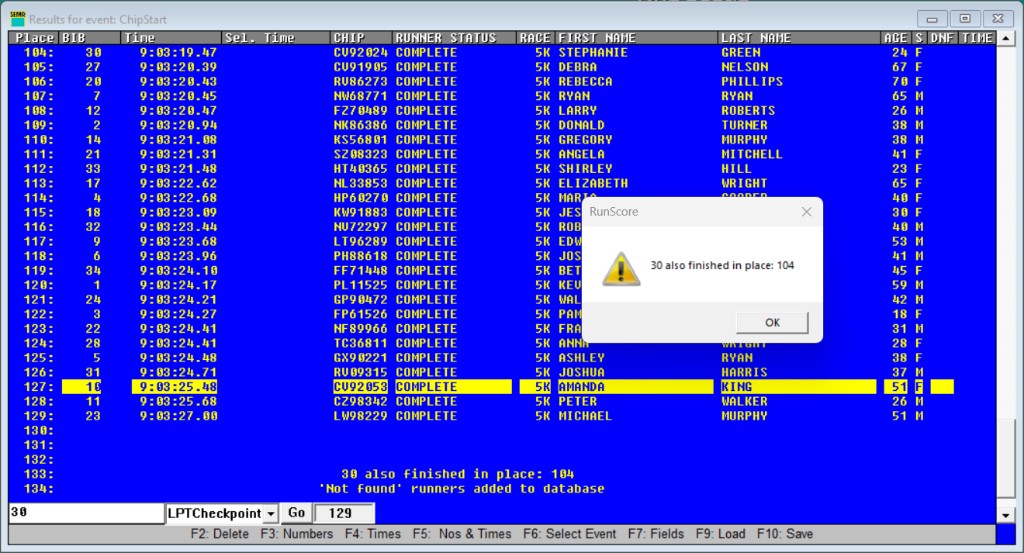
To prevent missed errors in a noisy environment, enable these in Preferences:
- Pop-up for duplicates — shows a modal dialog on duplicate bibs
- Lock keyboard — locks input until the error is acknowledged