Your First Look: Launching RunScore
With RunScore successfully installed, it's time to open the program and get oriented. This page covers the two desktop icons you'll see, which one to use, and how RunScore organizes its files on your computer.
The two desktop icons
After installation, you'll notice two new icons on your main computer's desktop:
| Icon | Name | What it does |
|---|---|---|
| RSServer | RunScore Server | The full scoring engine — your central hub for managing races |
| RSClient | RunScore Client | A connection tool for other computers on your network |
On your main scoring computer, always launch RSServer. The RSClient icon on this machine can be safely ignored — it's only relevant on the other computers (announcer station, registration desk, etc.) that connect to your server over the network. For details on how RSServer and RSClient communicate, see Client/Server Architecture.
Double-click the RunScore Server (RSServer) icon to get started. You can create a taskbar shortcut to it for even faster access on race day.
Advanced: Command-line startup
Most users just double-click RSServer or RSClient and pick a race from File → Open Race or the recent-races list. The options below launch RunScore straight into a specific race, listing, and server connection with no dialogs. They're built for kiosk/announcer stations, multi-machine setups an IT admin pre-configures once, and scripted launches.
RSServer: open a race directly
rsserver.exe [race-file] [race-folder] [/startup=filename.lst]
| Argument | Effect |
|---|---|
race-file (positional) | Full path to the race's database file (e.g. entries.frm) — or just its filename if race-folder is also given |
race-folder (positional, optional) | Folder containing race-file, when race-file is given as a bare filename |
/startup=filename.lst | Runs this listing/report file immediately after the race opens |
RSClient: connect and log in automatically
rsclient.exe [/address=host /port=number] [/login=name] [/startup=filename.lst]
| Argument | Effect |
|---|---|
/address=host | Server to connect to — IP address or hostname |
/port=number | Port the server is listening on |
/login=name | Login name to send at the server's login prompt |
/startup=filename.lst | Runs this listing/report file immediately after connecting |
/address= and /port= only take effect together — set both, or neither. They also update the saved TCP Server address/port preference, so the connection sticks on future launches without repeating the flags.
/login= skips the login dialog only if that account needs no password; otherwise the dialog still opens. There's no /password= flag.
Example: announcer kiosk
Set these on a shortcut's Target field, a pinned taskbar/Start menu shortcut, a scheduled task, or a launch script. The listing file (here, announce.lst) must already exist — see the Programming Primer to build one.
c:\runscore\client\rsclient.exe /startup=announce.lst /address=MyDesktop /port=33000
Connects to the server at MyDesktop:33000, saves that as the client's default connection, and loads announce.lst — no dialogs on this or future launches.
Understanding your RunScore files
Knowing where RunScore keeps its files will save you time and help you troubleshoot if something ever seems out of place.
The main RunScore folder: C:\RunScore
All of RunScore's essential program files live in C:\RunScore (unless you chose a different location during installation). Think of this as RunScore's home base.
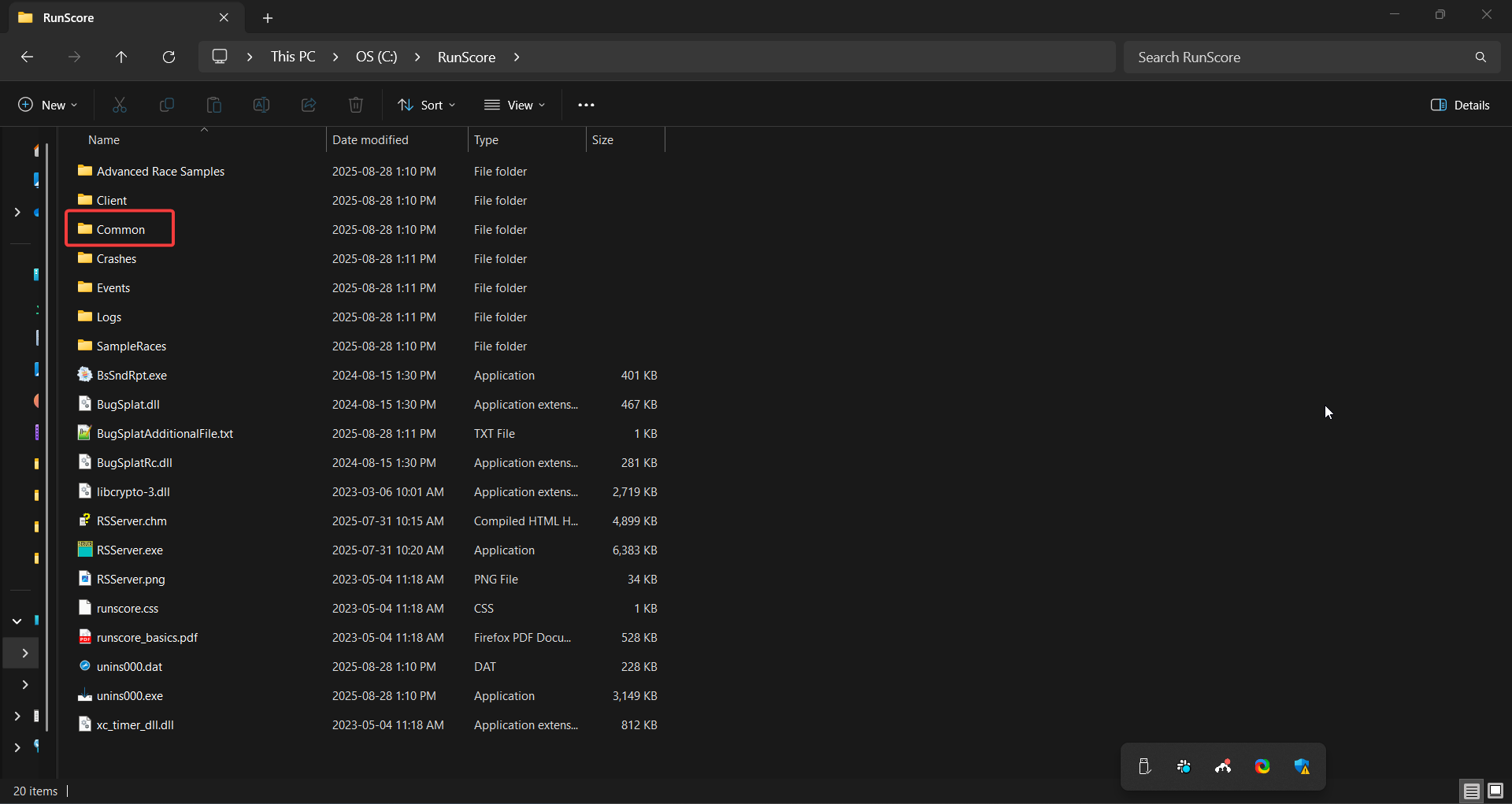
Inside this folder you'll find:
C:\RunScore\
├── Common\              System files for TAC timing and Age Graded calculations
│   └── zipcodes.dbf     Zip code database for automatic city/state lookup
├── SampleRaces\         Pre-built sample races to help you learn RunScore
└── AdvancedSampleRaces\ More complex sample races for advanced scenarios
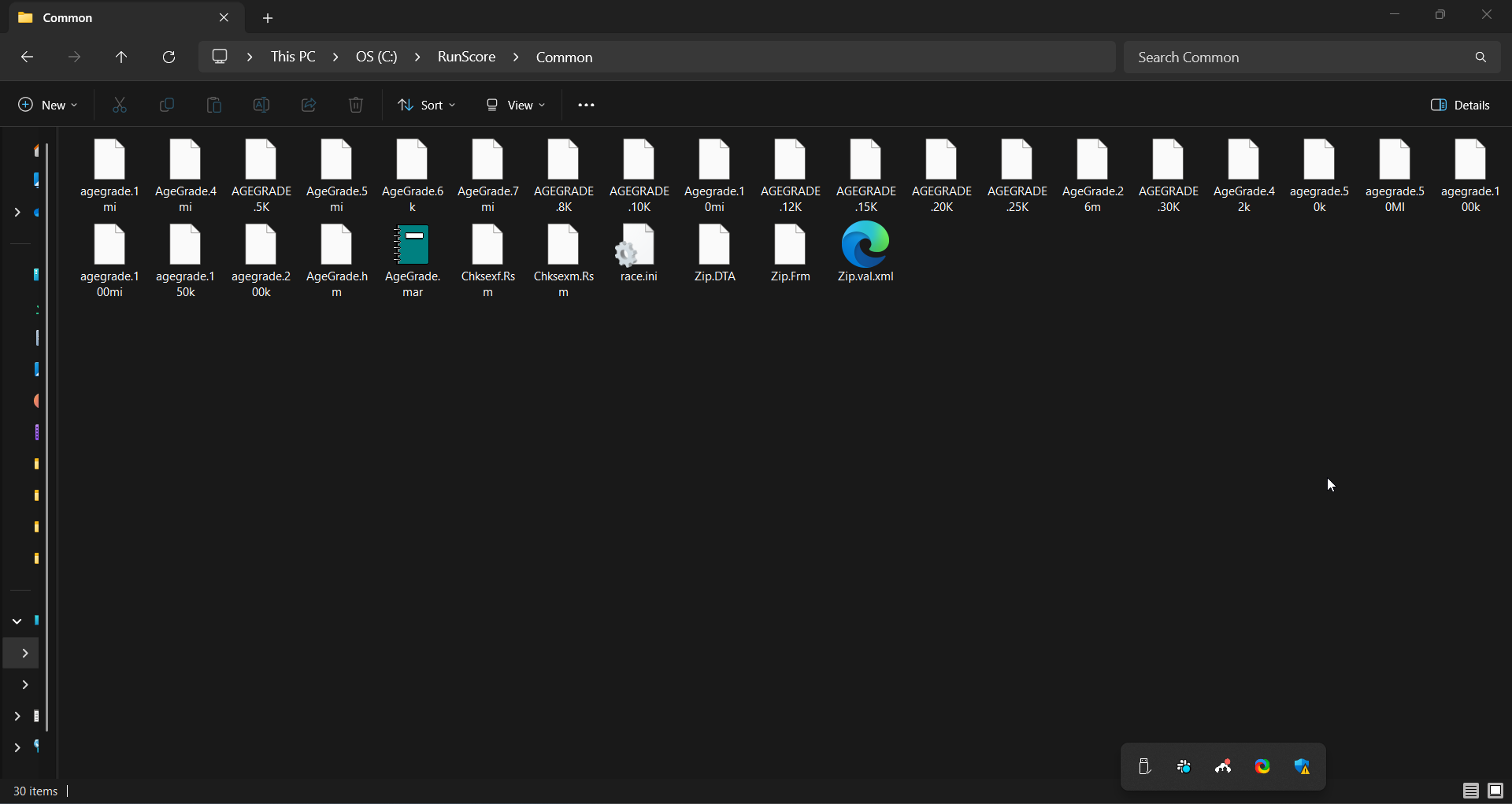
The Common subfolder
The Common subfolder holds two important supporting resources:
- TAC and Age Graded files — These enable specialized scoring calculations used in certain race categories. You don't need to configure them directly; RunScore uses them automatically when needed.
- Zip code database — When you enter a participant's zip code during registration, RunScore can automatically fill in their city and state. This small database makes data entry noticeably faster, especially for large events.
Sample race folders
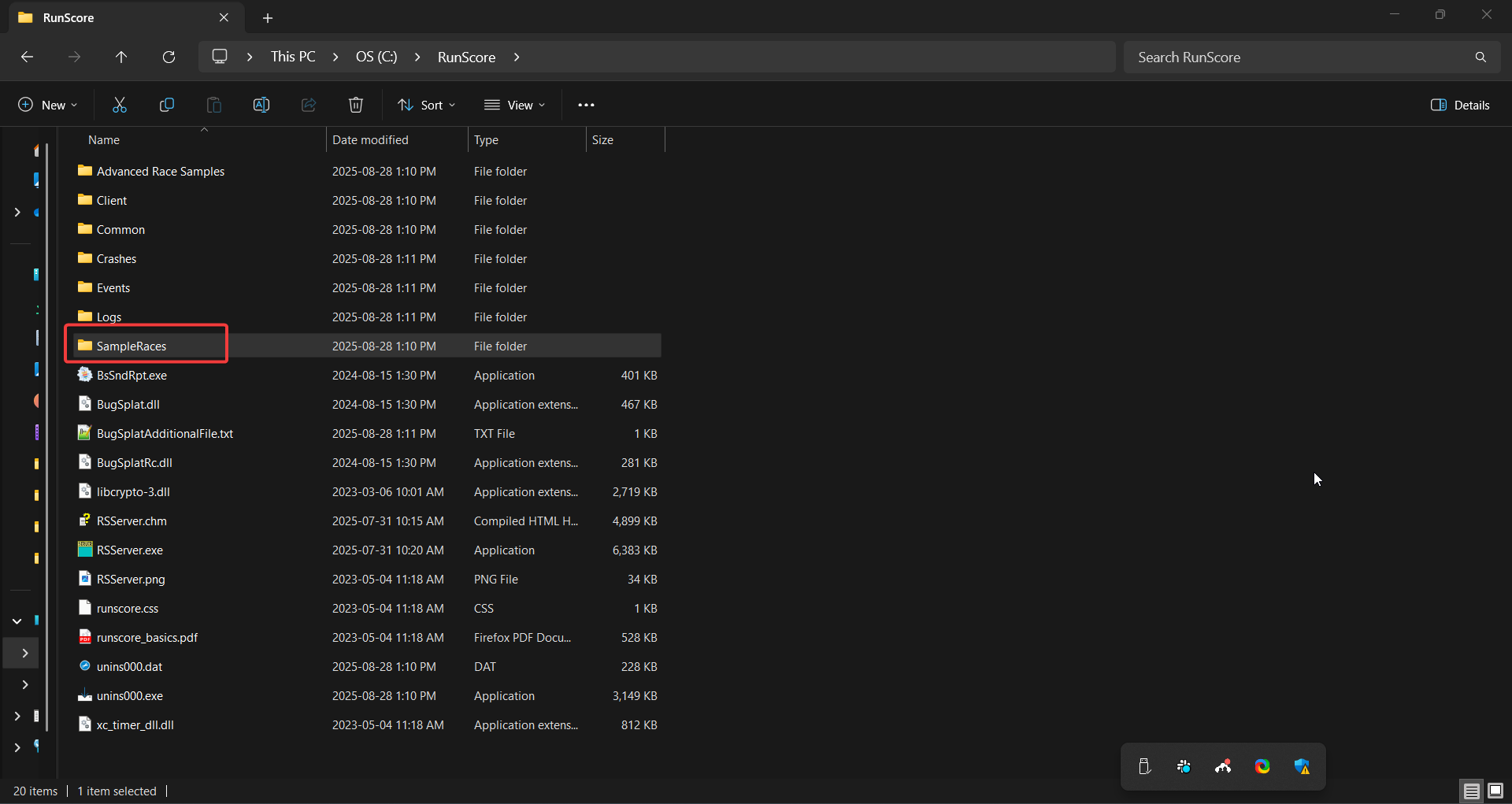
The SampleRaces and AdvancedSampleRaces folders contain pre-configured race setups. These are invaluable for learning — you can open them, experiment freely, and see exactly how RunScore is configured for real events without any risk of affecting actual race data.
If you chose Compact Installation, the sample race folders won't be present. You can re-run the installer at any time and select Custom Installation to add them.
RSClient: per-race profile folders
Starting in version 9.0, each RSClient machine keeps a separate settings folder per race, created inside RSClient's own install folder. The path is RSRaceProfiles\<RaceName>_<RaceDate>\ — e.g. C:\RunScore\Client\RSRaceProfiles\Boston10K_2026-04-20\. The date suffix is omitted if the race has no date set. RSClient creates this folder automatically the first time it connects to a given race.
<RaceName> and <RaceDate> have characters invalid in Windows paths (< > : " / \ | ? *) replaced with _. A race with a blank name falls back to NoRaceName.
Before 9.0, RSClient saved these files at the root of its install folder. Switching between races on the same client could leave the previous race's files mixed in with the new one. Per-race folders isolate each race, closing that gap.
This is separate from the race folder on the server — see Race Folder Basics for that.
Now that RunScore is installed and running, let's get familiar with the workspace. Head to Workspace Overview.