Event Routing
When chip/tag data arrives in RunScore, each read must be assigned to a RunScore event (TIME, SPLIT, CHIP, etc.).
Location matching
Every chip system identifies the source of a read with a name — ChampionChip calls it a Location, ChronoTrack calls it a Point. RunScore resolves this name to an event in the following order:
-
Direct name match. If the Location/Point name matches a RunScore event name (case-insensitive), data routes automatically. For example, a ChampionChip Location called
TIMEmatches the RunScore eventTIME. -
events_mapping.inilookup. If no direct match is found, RunScore checksevents_mapping.iniin the race folder. This file contains one mapping per line:events_mapping.iniFIN_PRIMARY=TIMESTART_MAT=CHIPSTART -
No automatic match found. RunScore opens a dialog so you can pick the event:
a. Pick an event. Your choice is saved to
events_mapping.iniand reused for later packets.b. Cancel. The location is ignored for the rest of the session (see the note below).
c. First-event fallback. Only if the entry you picked doesn't resolve to an event, RunScore asks whether to place the data in the first event. Yes writes the first event to
events_mapping.ini; No ignores the location.
Cancelling the dialog (or answering No to the first-event fallback) makes RunScore remember the location and silently ignore it for the rest of the session — no repeated dialogs during a busy race. The ignore list clears when you reopen the race; to route the location later, add it to events_mapping.ini and reconnect.
Editing the mapping file
Open the mapping file from Tools → Chip Options → Events mapping…. This opens events_mapping.ini in a text editor. Each line is LocationName=EventName.
To start fresh, delete the file (or all its contents). The next time a chip system connects, RunScore will re-prompt for each location.
Troubleshooting
If data is going to the wrong event:
- Open Tools → Chip Options → Events mapping… and check for stale or incorrect mappings.
- Delete
events_mapping.inifrom the race folder and reinitialize external timers. RunScore will prompt for each location again. - Verify that your middleware's Location/Point names match what you expect — these names are case-insensitive but must otherwise match exactly.
Per-event chip routing fields
Beyond location matching, each event has chip/tag routing fields that filter incoming reads. Configure these in Misc → Edit list of Events (or Tools → Edit List of Events), then double-click an event to open the Event Editor.
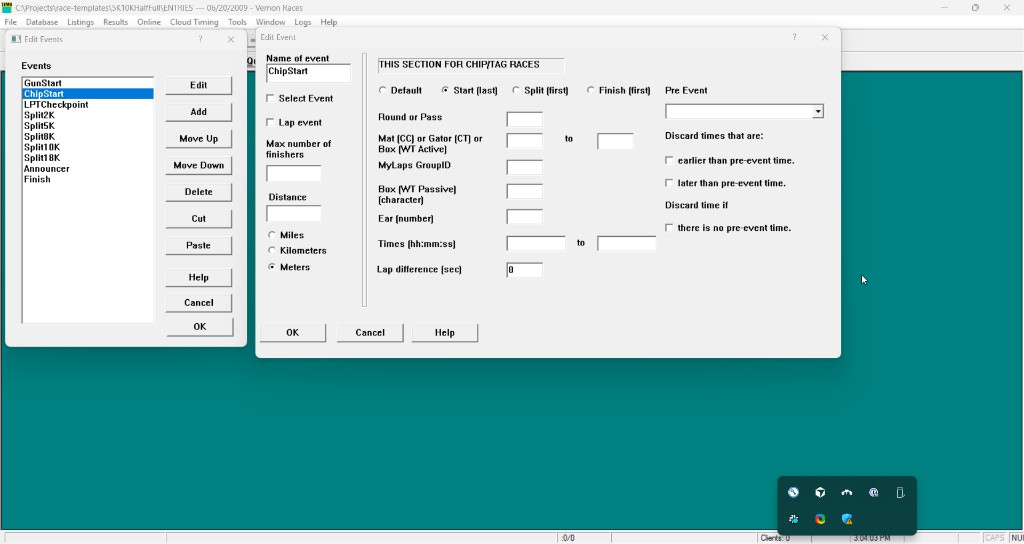
The right side of the Event Editor contains the chip/tag routing fields:
- Default / Start (last) / Split (first) / Finish (first) — Start keeps the last read; Split and Finish keep the first (fastest) read
- Round or Pass — matches the pass number sent by the middleware
- Mat or Box — matches the mat or decoder box ID
- Ear — matches the antenna (ear) number
- MyLaps GroupID — matches the MyLaps group identifier
- Times — accepts reads only within a time window
- Lap difference — minimum time between laps for the same runner
- Pre Event — requires a read in another event before accepting this one
For a full description of each field, see Enter/Edit Results → Chip/tag race settings.
How RunScore resolves incoming data
When a chip read arrives, RunScore follows this sequence:
- Find the event from the Location/Point name (via direct match,
events_mapping.ini, or user prompt as described above). - Apply routing fields. If the resolved event has Round, Mat, Ear, or GroupID values set, RunScore checks each event in order. The first event whose routing fields match the metadata of the incoming read receives the data.
- No routing match. If no event's routing fields match, the data goes to the event resolved in step 1 (or the first event if no location was specified at initialization).
The Event column in the Initialize External Timers dialog also affects routing. Setting it to * lets the location/routing fields decide; setting it to a specific event number pins that slot to one event regardless of other routing.