MyLaps / ChampionChip
RunScore connects to ChampionChip, MyLaps ProChip, and MyLaps BibTag decoders through MYLAPS middleware over TCP/IP. All three devices share the same protocol — ProChip and BibTag are ChampionChip variants that hit the same code path.
RunScore works with MYLAPS Timing & Scoring over TCP/IP. Older MyLaps Toolkit and ChampionChip ReadLite setups still speak the same protocol.
- MYLAPS Timing & Scoring (current) — TCP/IP to ChampionChip, MyLaps ProChip, or MyLaps BibTag.
- MyLaps Toolkit / ChampionChip ReadLite (legacy) — same TCP path; ReadLite also supports serial and file.
Looking for MYLAPS's newer cloud-based service instead? See MYLAPS Cloud Timing.
Supported devices
| Device dropdown name | Notes |
|---|---|
| ChampionChip | Original passive transponder system. 7-character alphanumeric chip code (e.g. DK5M6M9), looked up via the chip field in the database. |
| MyLaps ProChip | Same protocol as ChampionChip — "acts just like ChampionChip." |
| MyLaps BibTag | Same protocol. Chip ID is in GroupID format (IICCCCC — first two digits = group, last five = ID). When Bib ID is enabled (see BibTag mode below), the chip ID is treated as the bib number directly. |
Prerequisites
- MYLAPS Timing & Scoring (or legacy Toolkit or ReadLite) installed and running on the decoder PC (or the same machine as RunScore).
- The decoder hardware connected and visible to the middleware.
- A TCP port number agreed upon between RunScore and the middleware (any port in the range 1024–65535).
Setup (TCP)
Middleware side
In Timing & Scoring (or legacy Toolkit), open the T&S TCP/IP exporter settings ("Plug-in Settings for TCP/IP export"). Set the hostname (localhost if the middleware and RunScore are on the same PC) and a TCP port. The port is yours to choose — it is not fixed. RunScore accepts 1024–65535; both sides must match.
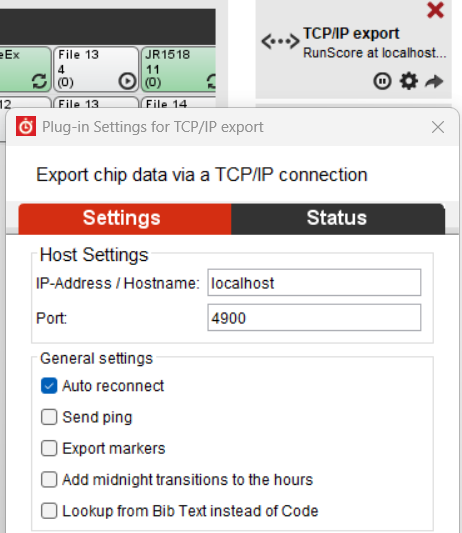
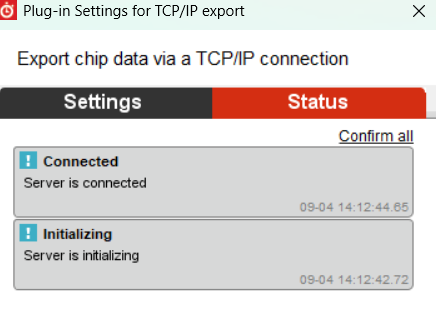
The Status tab should show Initializing → Connected once RunScore is listening:
In legacy ReadLite, configure a TCP/IP connection to RunScore's IP and port.
RunScore side
Open the Initialize External Timers dialog, then on an empty slot:
- Set Device to
ChampionChip,MyLaps ProChip, orMyLaps BibTag(whichever matches your hardware). - Check the TCP box. (The baud rate setting has no bearing on TCP/IP.)
- Enter a Port number (1024–65535). This must match the port the middleware is exporting on.
- Set Event to
*so incoming Locations are resolved through the location map, or a specific event number to pin the slot to one event. - Click OK.
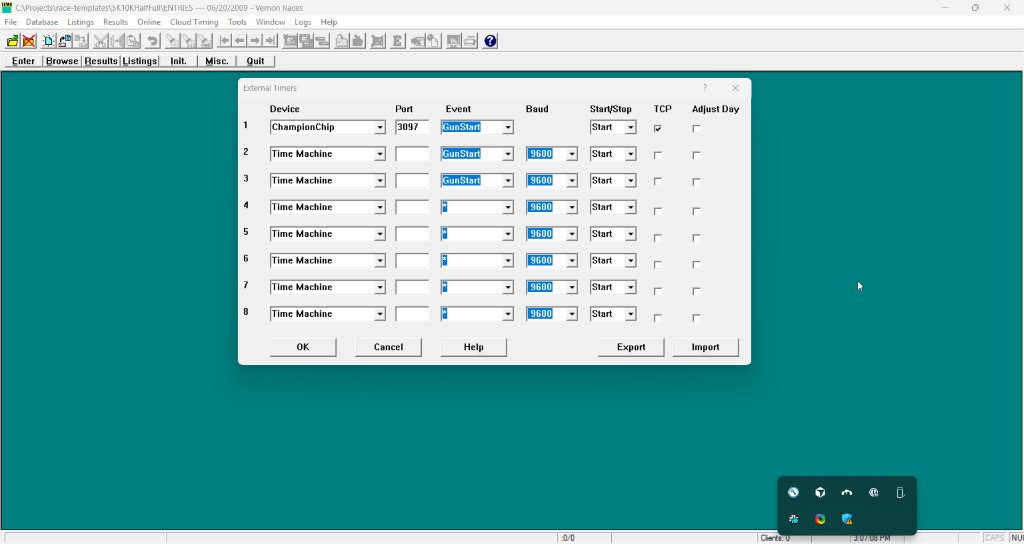
RunScore begins listening on the specified port — it acts as the TCP server. The middleware connects in as the client. This is the reverse of how most TCP timers work. On the Timing & Scoring exporter tile, you should see something like RunScore at localhost:… once connected.
Location mapping
Each middleware "Location" (the text before the first @ in a message) must be mapped to a RunScore event. Resolution order:
- Same name — if the Location name matches a RunScore event name, data routes automatically.
events_mapping.ini— stored mappings in the race folder (editable via Tools › Chip options › Events mapping…).- Prompt — if neither matches, RunScore pops up a dialog asking you to assign the Location. The chosen mapping is saved to
events_mapping.ini.
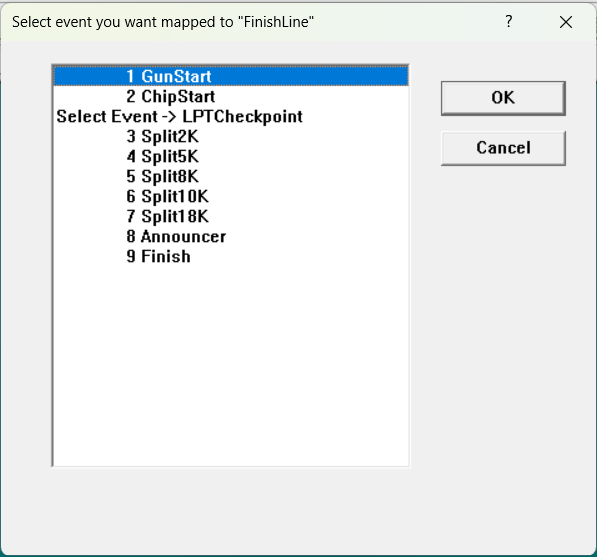
Clicking Cancel on the prompt ignores that Location for the rest of the session (until you reopen the race).
Event routing
Beyond the Location mapping above, chip reads can be filtered per-event using fields in the Event Editor:
| Field | Meaning | Example |
|---|---|---|
| Ear (number) | Single antenna/read-point number. | 1 |
| Mat | Reader/mat range. | 1 2 |
| Round/Pass | Lap or pass through the timing point. | 1 |
| MyLaps GroupID | Two-digit group prefix from the chip ID. | 01 |
Gun times and markers
Gun-start times reach RunScore two ways:
- Chip code
ST00007— a special chip ID that the decoder sends when it receives a gun-start signal. RunScore writes this time toguntime.inias the gun time for the event. - Marker command — the middleware sends
<Location>@Marker@...messages. RunScore writes these toguntime.iniand acknowledges with<Location>@AckMarker@<msg-number>@$\r.
BibTag vs. chip mode
By default, RunScore uses the chip code and looks it up in the database via the chip field.
When Tools › Chip options › Bib ID is checked (and Chip ID is not), the chip ID is used as the bib number directly — no chip-to-bib lookup is needed. This is the typical mode for MyLaps BibTag deployments where the tag number matches the bib number.
Loading chip data from a file
If you have a saved ReadLite data file (e.g. from ReadLite's Save on File Deletion feature), you can load it without a live TCP connection:
- Enable Tools › Chip options › Auto Load and To results.
- In Enter/Edit Results, press Ctrl+F9 to import the file.
Do not initialize a timer slot with TCP unchecked to import a file — that path is serial communication to the Ear hardware, not file import.
Connection status and troubleshooting
Handshake and keepalive
When the middleware first connects, it sends <Location>@Pong@$ as a handshake. RunScore replies with RunScore@AckPong@$.
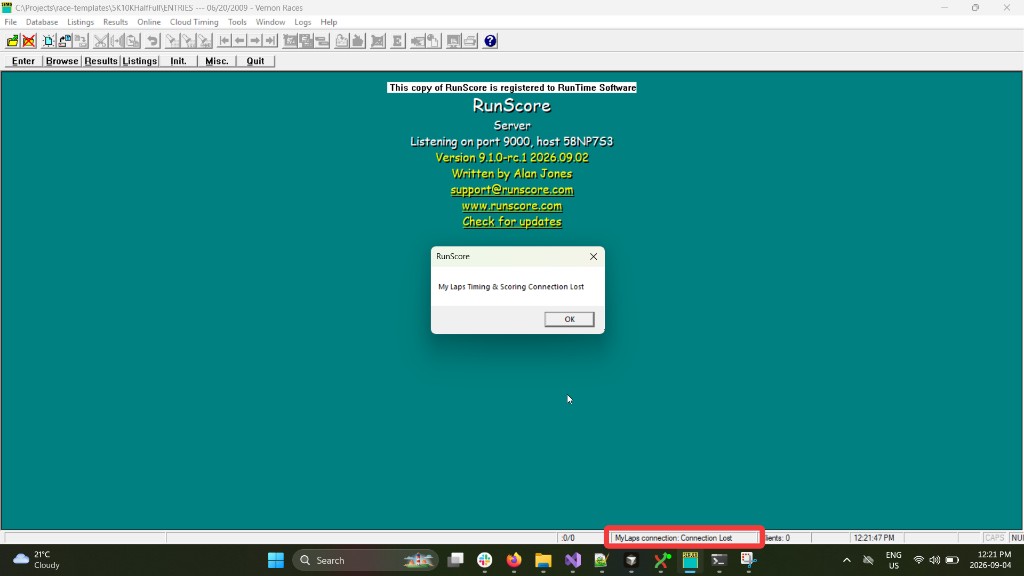
For keepalive, RunScore sends RunScore@Ping@$ after 20 seconds of silence. The middleware should reply with @AckPing@$. If the ping goes unanswered for another 20-second timeout (~40 seconds total silence), RunScore marks the connection as lost.
In Timing & Scoring (or legacy Toolkit), the Send ping checkbox in the T&S TCP/IP exporter settings controls whether the middleware sends its own pings. This is separate from RunScore's ping.
Status indicators
RunScore shows status strings in the format MyLaps connection: <status>:
| Status | Meaning |
|---|---|
| Idle | Socket is up, but no data is arriving right now. |
| Streaming | Middleware is connected and actively sending data. |
| Connection Lost | Ping went unanswered — no data for ~40 seconds. |
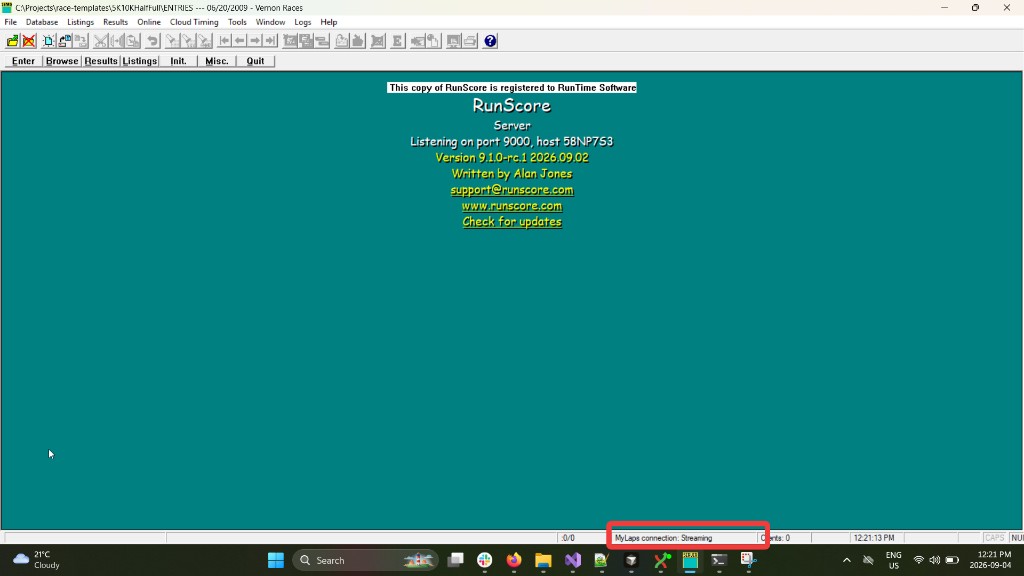
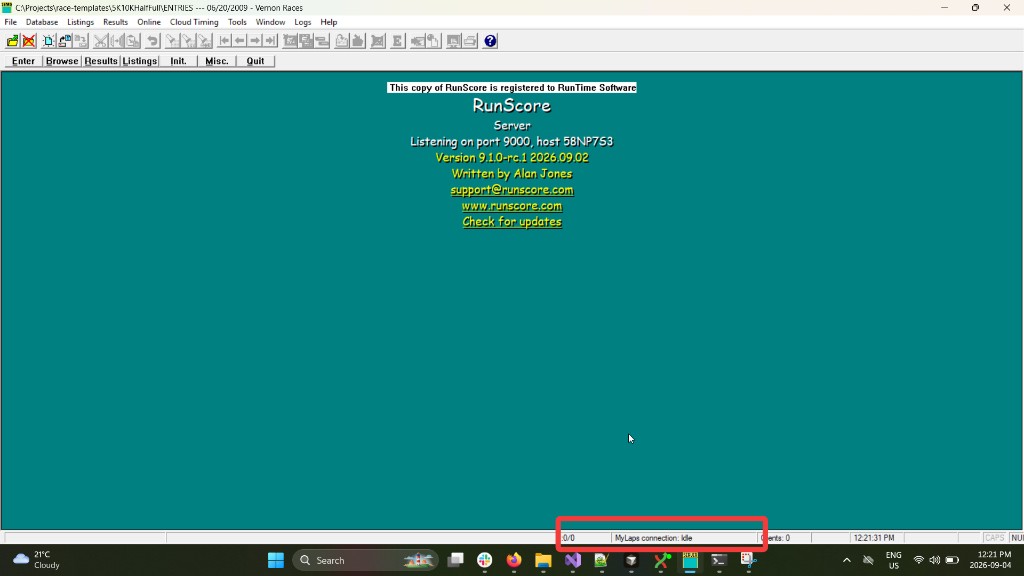
When the connection is lost, RunScore displays a "My Laps Timing & Scoring Connection Lost" popup:
Troubleshooting
- Middleware won't connect: Confirm the port number matches on both sides and that no firewall is blocking the port. RunScore must be started (listening) before the middleware tries to connect.
- Chip reads arriving but not matching runners: Verify your chip-to-bib mapping, or enable Tools › Chip options › Bib ID if your tags match bib numbers directly.
- Debug mode: Open Enter/Edit Results and press Alt+D to toggle debug logging for raw protocol messages.
Day adjustment
ReadLite records that include a date field (YYMMDD) are automatically adjusted by comparing the passing date to the Race Date (0–6 day delta). This happens regardless of the Adjust Day checkbox in the Initialize External Timers dialog — that checkbox controls the generic PC-clock path used by other devices, not MyLaps TCP dates.