RunScore Open
RunScore's Open Interface lets any third-party middleware feed bib or chip reads into RunScore over TCP/IP or a serial port. The middleware translates whatever protocol the decoder speaks into the comma-delimited RSBCI/RSBI/RSCI format documented below. It then streams those lines to RunScore.
The race|result system from Germany uses this Open Interface. It can handle either a chip tag or a bib tag.
Supported devices
Both device entries are in the Device dropdown of the Initialize External Timers dialog.
| Device dropdown name | Code string | Notes |
|---|---|---|
| RunScore Open | RSBCOI | Generic open interface — any middleware that emits RSBCI/RSBI/RSCI lines. (RSBCOI is the internal device code; the wire prefixes are RSBCI, RSBI, and RSCI — see Protocol format.) |
| race|result | RACE_RESULT | Uses this Open Interface (chip or bib). |
Prerequisites
- Middleware that converts your decoder's output into RSBCI, RSBI, or RSCI messages.
- A TCP port agreed upon between RunScore and the middleware (1024–65535), or a serial cable with matching COM port and baud rate.
Setup (TCP)
- Open the Initialize External Timers dialog.
- On an empty slot, set Device to
RunScore Open(orrace|result). - Check the TCP box.
- Enter a Port number (1024–65535). Both sides must match.
- Set Event to
*to use location mapping, or enter a specific event number to route all data from this slot to that event. - Click OK.
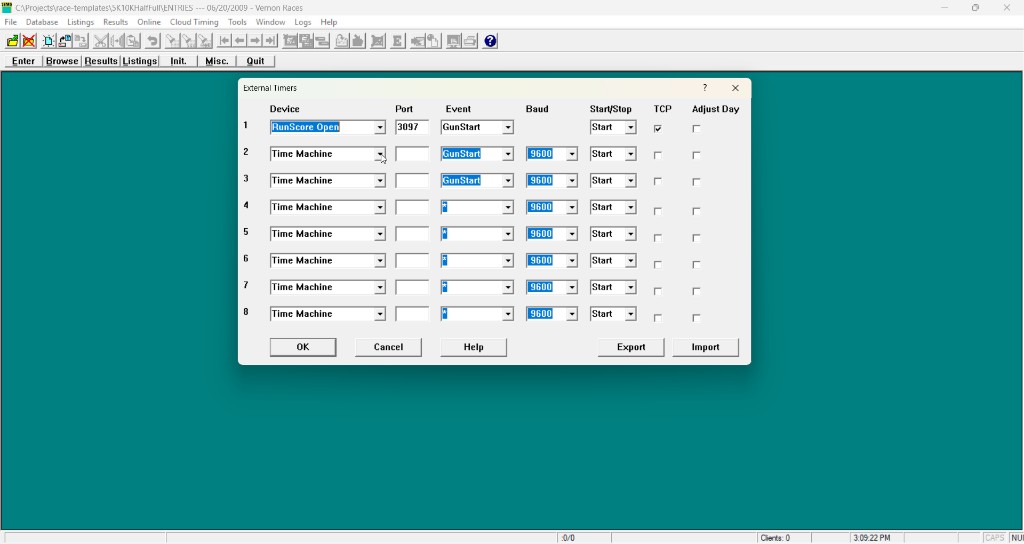
The screenshot shows Event set to a specific event name, which routes all data from this slot to that event and skips location mapping. Set Event to * if your middleware sends a location token and you want RunScore to map it automatically.
RunScore begins listening on the specified port — it acts as the TCP server. The middleware connects as the client. This is the same server-role behavior used by MyLaps and other chip devices.
To see raw protocol messages during setup, open Enter/Edit Results and press Alt+D to toggle debug logging.
Setup (Serial)
- Open the Initialize External Timers dialog.
- On an empty slot, set Device to
RunScore Open(orrace|result). - Leave the TCP box unchecked.
- Set the Port to your COM port number.
- Set the Baud rate to match the middleware (default 9600). Serial parameters are fixed at 8N1 (8 data bits, no parity, 1 stop bit).
- Click OK.
Protocol format (RunScore Open)
Messages are comma-delimited and terminated with CR (or CR+LF).
In TCP mode, RunScore silently discards any message shorter than 20 characters. Make sure your middleware sends complete lines — short or partial writes will be dropped with no error.
Three prefixes are recognized:
| Prefix | ID field meaning | Full name |
|---|---|---|
RSBCI | Bib or chip (per Chip options) | RunScore Bib/Chip Interface |
RSBI | Always bib | RunScore Bib Interface |
RSCI | Always chip | RunScore Chip Interface |
Full format:
PREFIX,<id>,<time>[,<location>]<CR>
| Field | Description |
|---|---|
PREFIX | One of RSBCI, RSBI, or RSCI. |
id | Bib or chip number (max 23 characters). |
time | Time of day or elapsed time — e.g. 0:32:15.47. Parsed by RunScore's general time parser. |
location | Optional. A string that RunScore maps to a specific event (see location mapping). |
Examples
RSBCI,142,0:32:15.47,Start
RSBCI,142,1:05:30.12,Finish
RSBI,307,0:45:00.00,Finish
RSCI,DK5M6M9,0:28:44.55,Mat1
Bib vs. chip mode
Before sending data, configure how RunScore interprets the ID field. Open Tools › Chip options and choose one:
- Bib ID — the ID field is treated as a bib number (no chip lookup).
- Chip ID — the ID field is looked up through the chip-to-bib mapping in the database.
This setting controls how the RSBCI prefix is interpreted. RSBI and RSCI override it — they always mean bib and chip respectively.
Location mapping
The optional fourth comma-delimited token in each message is the location string. RunScore resolves it to an event using the same mechanism as other chip devices:
- Same name — if the location matches a RunScore event name, data routes automatically.
events_mapping.ini— stored mappings in the race folder (editable via Tools › Chip options › Events mapping…).- Prompt — if neither matches, RunScore asks you to assign the location. The mapping is saved to
events_mapping.inifor next time.
Day adjustment
When the Adjust Day checkbox is enabled in the Initialize External Timers dialog, RunScore automatically computes the difference between today's date (local system clock) and the race date, then adds that offset to each incoming time. The offset is clamped to 0–6 days; if the difference falls outside that range, no adjustment is applied.
Enable this for multi-day ultras or events that span midnight. For a single-day race the offset is zero, so leaving the checkbox on has no effect.
Loading from a file
If you have a saved text file containing RSBCI/RSBI/RSCI lines (the same format as the live stream), you can import it without a live connection:
- Set Tools › Chip options › To results.
- In Enter/Edit Results, open the target event, then press Ctrl+F9 (or File › Load Chip file).
Do not enable Auto Load for a one-shot import — that flag deletes the file after it is read.
Lines starting with RSBCI, RSBI, or RSCI are processed by the Open Interface parser. Do not mix other delimited formats in the same file.
Port conflicts
RunScore checks for duplicate ports when you click OK in the Initialize External Timers dialog. If a conflict is found, the dialog stays open so you can correct it.
| Condition | Behavior |
|---|---|
| Same serial COM port | Error — the duplicate slot is removed and the dialog stays open. |
| Same TCP port + same IP address | Error — the dialog stays open; correct one of the port or IP values. |
| Same TCP port + different IP addresses | Allowed (different middleware instances on different hosts). |
Troubleshooting
- Middleware won't connect: Confirm the port matches on both sides and that no firewall is blocking it. RunScore must be started (listening) before the middleware connects.
- Short messages dropped silently: See the TCP minimum message length warning above. Verify your middleware sends complete lines of at least 20 characters.
- Debug mode: In Enter/Edit Results, press Alt+D to toggle debug logging for raw protocol messages.