Connecting RunScore to Your MYLAPS Account
To securely link RunScore with your MYLAPS Cloud Timing account, enter a unique API key. Think of this as a personal, secure credential that allows the two systems to communicate safely. The key is encrypted with the latest Microsoft encryption technology.
Enter your API key
API Key Scope & Persistence
You can use an API key scoped for all events or a specific event:
- All Events Key (Recommended): Enter this once and RunScore saves it for all future events—no need to update it again.
- Event-Specific Key: Ensure the key you enter covers the specific event(s) you are currently managing.
With Cloud Timing enabled in RunScore, use the Cloud Timing menu:
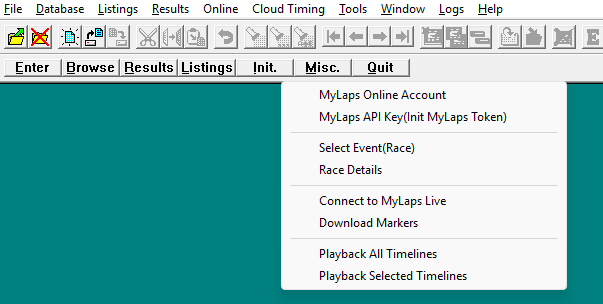
- Go to the Menu Bar.
- Select Cloud Timing, then choose MyLaps Online Account. This opens a link to the MYLAPS portal, where you can copy the API key.
- Select Cloud Timing, then choose MyLaps API Key (Init MyLaps Token).
- In the prompt that appears, enter your unique API key. The MYLAPS portal lets you copy the key, so you can paste it directly into RunScore.
- Click OK.
After you enter your key successfully, RunScore establishes a connection with your MYLAPS Cloud Timing account. The other options in the Cloud Timing menu become active and are no longer grayed out — you're ready to use the advanced cloud features.