Tools → Chip Options
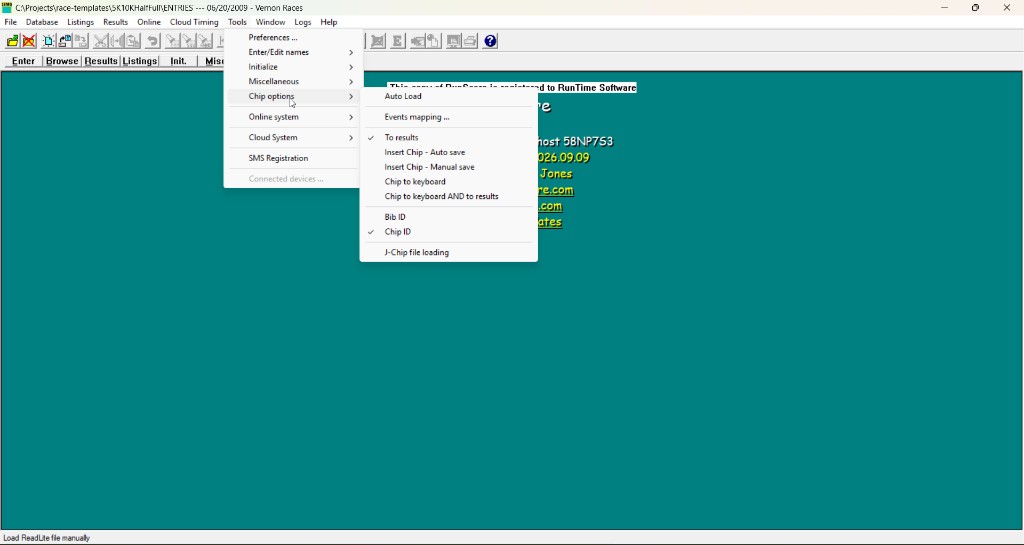
Chip read destination
These items are mutually exclusive — only one can be active at a time.
To results
The default mode. Chip/tag reads go straight into Enter/Edit Results as finish records (bib number and time). This is the normal race-day setting.
Insert Chip - Auto save
Use this mode to populate the CHIP field in Enter/Edit Names from a chip reader — for example, when scanning chips during packet pickup.
- Open Enter/Edit Names.
- Select Tools → Chip Options → Insert Chip - Auto save.
- Scan a chip. RunScore places the chip code into the CHIP field and saves the record automatically — the equivalent of F12 (Save & New), which keeps Enter/Edit Names open for the next scan.
Insert Chip - Manual save
Same as Insert Chip - Auto save, but RunScore does not save automatically. After the chip code appears in the CHIP field, press F12 (Save & New) to save the record yourself and move to a new one for the next scan — this gives you a chance to review or edit other fields first. (F10 saves and closes the window, so avoid it mid-pickup.)
Enter/Edit Names must be open for either Insert Chip mode to work. If you are in Enter/Edit Results instead, the scan has no effect.
Chip to keyboard
Translates the incoming chip read to a bib number (via the chip-to-bib mapping) and places it in the keyboard buffer — as if you typed the bib number on the keyboard. The read does not go into results.
For the Announce screen, the Announce Event feature (under Listings) is usually a better choice — it updates automatically without requiring this mode.
Chip to keyboard AND to results
The chip read goes to both the keyboard buffer (as a bib number) and into results (as a finish record). Use this when you need both paths simultaneously.
ID interpretation
This toggle is honored only by systems whose read can be either a bib or a chip: RFID, AMB, MYLAPS BibTag (GroupID), RunScore Open and race|result (RSBCI), Active Timing, and MYLAPS Cloud. Systems with a fixed protocol ignore it — ChronoTrack and Macsha always use the bib number; ChampionChip (without GroupID) always uses the chip code.
Bib ID
When checked, RunScore treats the incoming ID as a bib number and looks it up directly in the database — no chip-to-bib mapping is needed.
When loading data from a FinishLynx .LIF file, RunScore always uses bib-ID lookup regardless of this setting.
You can also set this per-race in entries.ini:
Bib or Chip bib
Chip ID
When checked, RunScore treats the incoming ID as a chip code and looks it up via the chip-to-bib mapping (the Look Up command in entries.ini or a bibchip.dta database). This is the default.
You can also set this per-race in entries.ini:
Bib or Chip chip
Events mapping
Opens the events_mapping.ini file for the current race in a text editor. This file maps middleware location names to RunScore event names (one Location=Event pair per line). See Event routing for how this file is created and used.
Auto-load
Toggles automatic file-based chip loading. When enabled, RunScore polls for a chip data file, reads it, and deletes it. The middleware writes a new file, RunScore reads it again, and the cycle repeats — no live TCP/IP connection is needed.
How auto-load works
- Enable Auto Load from this menu.
- Open Enter/Edit Results and press Ctrl+F9 (or File → Load Chip file).
- Browse to the chip data file produced by your middleware.
- RunScore imports the data and deletes the file.
- When the middleware writes a new file with the same name and path, RunScore reads it automatically, deletes it, and waits again.
The file path is saved per-event in the race folder as <EventName>.INI (key: ChipFile). On future race opens, RunScore remembers which file to watch.
RunScore checks for a new file approximately every 0.6 seconds.
- RSServer deletes any chip file after auto-loading it, regardless of the filename.
- RSClient only enables the auto-load cycle for files whose name contains
_LOG.TXT. Those files are deleted after each read. Other filenames are loaded once (on Ctrl+F9) but do not participate in the polling loop.
If you are using RSClient for auto-load, name the middleware output file with a _LOG.TXT suffix (for example, FINISH_LOG.TXT).
See also
J-Chip file loading
When checked, RunScore processes chip data files using J-Chip format rules instead of ChampionChip format. Enable this before loading a saved J-Chip data file with Ctrl+F9.
The J-Chip record format is similar to ChampionChip but uses a day counter where ChampionChip uses an antenna number. Without this setting enabled, J-Chip files may be parsed incorrectly.