Design Screen
Configure the Enter/Edit Names layout (WYSIWYG). Open Tools → Enter/Edit Names → Design Screen. Layout is stored in {database}.frm (typically entries.frm); many validation attributes also land in {database}.val.xml (typically entries.val.xml).
Some field behavior is controlled from the entries.ini update file rather than this screen — see Entries.ini Reference.
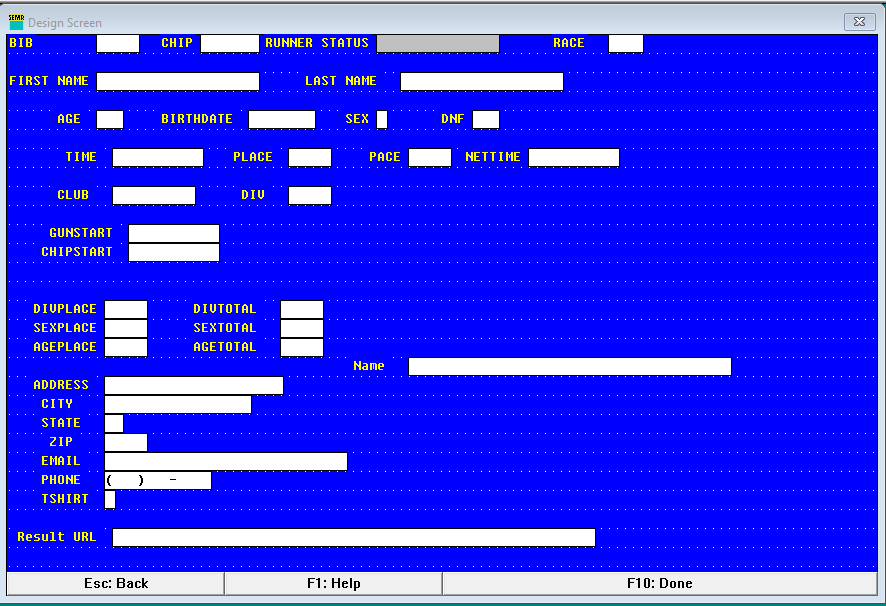
Press F10: Done to save. If field lengths change or fields are added/removed, rebuild the database when prompted.
Right-click a field for Cut, Copy, Delete, or Properties (attributes).

Field properties
Field name
Sets the field's label as shown on the Enter/Edit Names screen.
Field length
Sets how many characters the field stores. Changing this may trigger the rebuild-database prompt (see above).
Search field
Marks the field as searchable. Optional Search length limits how many characters are indexed for search/sort; search keys stay in memory for performance.
Unique field
Rejects duplicate values across entrants. The bib field (NO.) is normally unique; clear the flag temporarily when fixing accidental duplicate bibs.
Digit Only
Allows digits plus : and . only (times and similar). Stricter than free text; use Must be a number when non-digit punctuation must also be rejected.
Alphabetic field
Accepts letters only.
Text format (case)
None: no change. Upper: all caps. Lower: all lowercase. Proper: capitalizes initial letters, e.g. Ronald MacDonald — also handles Mac/O' name prefixes, e.g. O'Brien.
Right Justified
Right-aligns field contents. AGE commonly uses this too.
Bib (NO.) must always stay right-justified.
Required input
Field cannot be left blank, e.g. SEX.
Must be a number
Digits only, no exceptions — stricter than Digit Only, which also allows : and ..
Protected
Disables and dims the field so entry staff can't edit it; the cursor also skips it in tab order.
Database Search
Shows a drop-down of matching entries as you type.
Database View
Includes this field's value in the Database Search drop-down.
Type ahead
- Auto-fills the field with the first matching existing entry as you type. Keep typing to override.
- Shows a drop-down of all matches — click one, or arrow down to it and press Enter.
Date Field
Reformats input to the date format set in entries.ini, e.g. 2004-2-3 → 2004-02-03. Converts a 2-digit year to 4 digits, e.g. 67-1-2 → 1967-01-02, when the field is 4-digit-year.
Time Field
Marks the field as time-formatted. The only current use is configuring splits on RunSignUp, though the control itself is generic.
Maximum and minimum values
Numeric fields only. Set upper and/or lower bounds, e.g. AGE maximum 95, minimum 5.
Template
Inserts fixed characters into a field. Handy for phone numbers, e.g. ( ) - or - - .
Allowed values
Restricts entry to a specific list, e.g. M/F for SEX, or S/L/X for a T-shirt size field.
Create a field or label
Right-click empty screen space → Create Field or Create Label. A label needs only a name; a field takes the properties above.
Delete a field or label
Click it (turns red), then press Delete — or right-click it and choose Delete.
Move a field or label
Click it (turns red), then drag with the mouse or nudge with the arrow keys.
Save changes
Done saves the layout. Esc (or Esc: Back) discards changes.
Form validation ({database}.val.xml)
Field validation schemas live beside the database as {database}.val.xml (usually entries.val.xml). RunScore creates and updates this file from the field properties above. Prefer Properties over hand-editing the XML.
Legacy entries.val is migrated once into entries.val.xml. Look Up commands belong in entries.ini (fallback: val file if absent from entries.ini).
<fields>
  <field name="Sex">
    <allowed>M</allowed>
    <allowed>F</allowed>
  </field>
  <field name="Age">
    <max>93</max>
  </field>
  <field name="TShirt">
    <allowed>S</allowed>
    <allowed>M</allowed>
    <allowed>L</allowed>
    <allowed>X</allowed>
  </field>
</fields>
For the other Tools → Enter/Edit Names submenu items, see Enter/Edit Names → Introduction.